
Table of Contents
How to Test Keyboard Keys Online
If one or more keys on your keyboard have stopped working or you are not sure whether the problem is the keyboard itself or a software issue an online keyboard test is the fastest way to find out. This guide walks you through exactly how to test your keyboard keys online in under two minutes, what the results mean, and what to do next if you find a fault.
Why test your keyboard online?
Testing your keyboard online rather than running a local diagnostic tool has several advantages. It works on any operating system Windows, macOS, and Linux. It requires no software installation. The test takes under 60 seconds. And because the tool runs in your browser, it tests keyboard input at the operating system level, which means it catches both hardware faults and driver level issues equally well.
The most common reasons people test their keyboards online are:
- A key has stopped responding completely
- A key is typing the wrong character
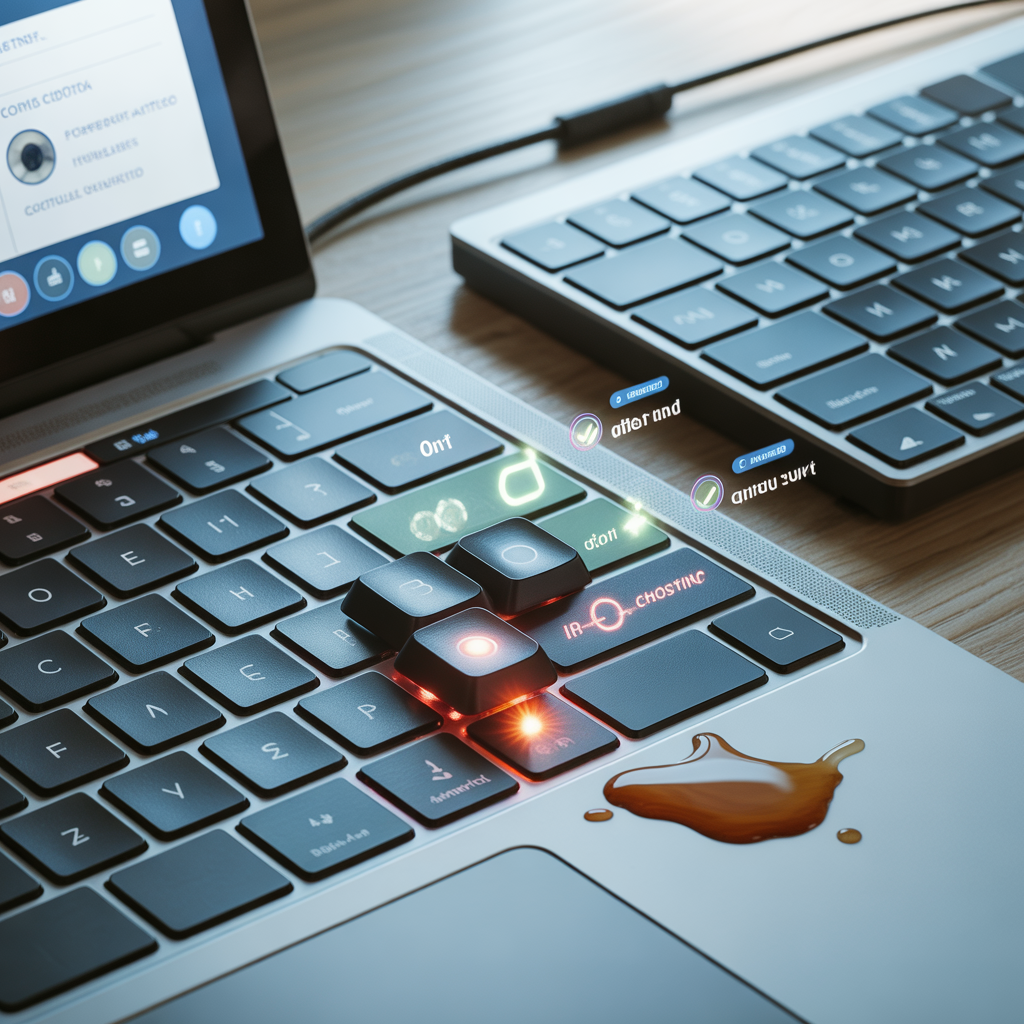
- Multiple keys pressed together are not all registering (ghosting)
- A key appears to be stuck and registers input without being pressed
- Testing a second hand keyboard before deciding to keep it
- Verifying a keyboard after a liquid spill and cleanup
How to test your keyboard online
Step 1 – Open an online keyboard tester
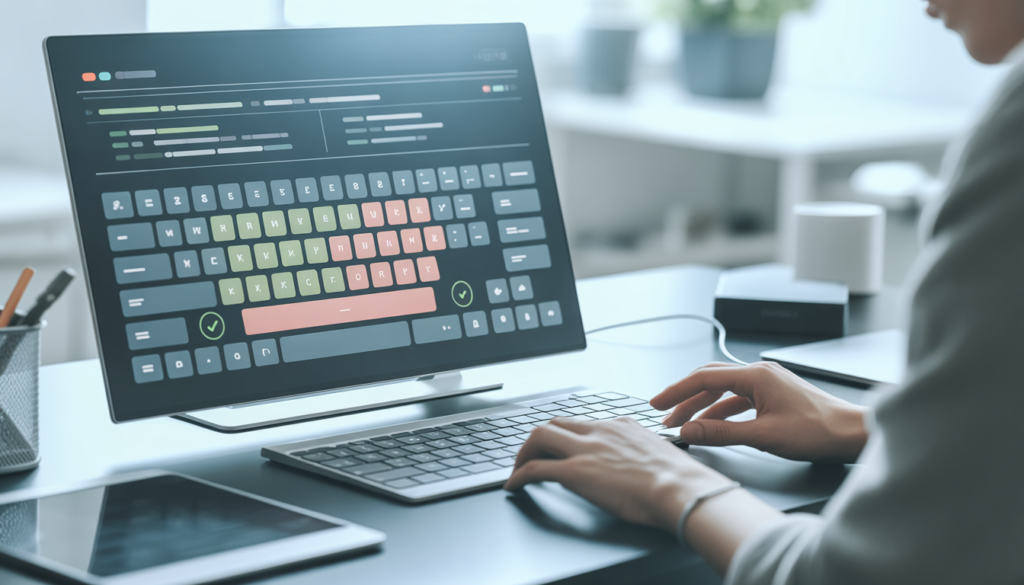
Navigate to techtester.online/keyboard-checker/ in your browser. The keyboard checker tool loads automatically you will see a virtual keyboard layout on screen that mirrors a standard keyboard. No account is needed and nothing is downloaded to your device.
Step 2 – Press every key one at a time
Start at the top left and work left to right across each row. Press each key on your physical keyboard. The corresponding key on the virtual keyboard display will light up or change colour to confirm the press has been detected. Work through: Escape and function keys (F1–F12), the number row and Backspace, the Tab, Q–P letter row, the Caps Lock, A–L letter row, the Shift, Z–M letter row, the Ctrl, Alt, Spacebar, and arrow keys.
Step 3 – Test multi-key combinations
After testing individual keys, test common multi key combinations used in work and gaming: Ctrl+C, Ctrl+V, Ctrl+Z, Alt+Tab, and any key combinations your specific keyboard uses. If any key in a combination fails to register, that is a ghosting issue.
Step 4 – Check modifier keys separately
Left Shift and Right Shift are separate keys and can fail independently. Same for Left Ctrl and Right Ctrl, Left Alt and Right Alt (Alt Gr on some layouts). Make sure to press each modifier key individually on both sides of the keyboard.
Step 5 – Read the results
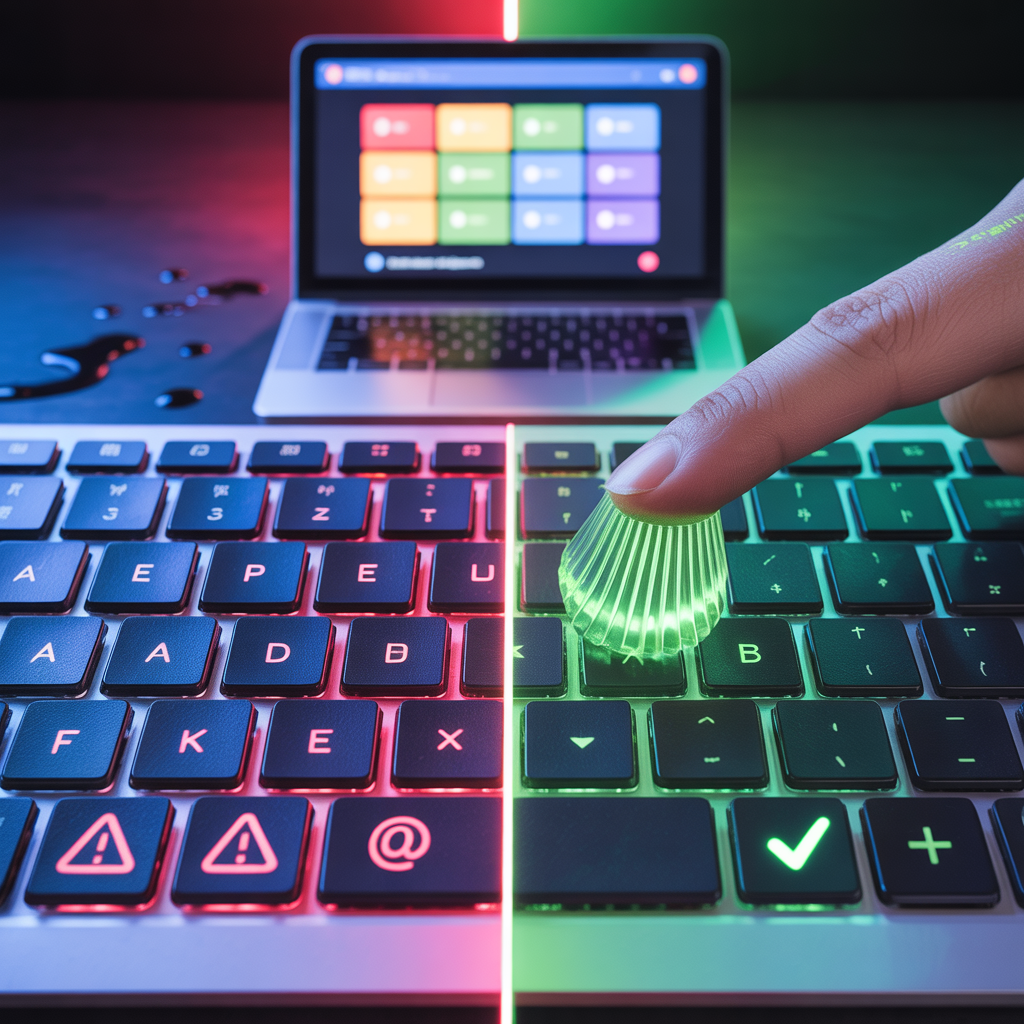
Any key that lights up on the virtual display is working correctly. Any key that does not light up when pressed is dead or has a connectivity fault. Any key that appears already lit before you press it is stuck. If a key lights up the wrong key on the display, you have a driver or layout configuration issue.
What to do based on your results
All keys work no issues found
Your keyboard is functioning correctly. If you were experiencing problems in a specific application, the issue is with that application or its key bindings, not the keyboard hardware.
One or a few keys are not responding
Try cleaning under the keycap first with compressed air. Then test the keyboard on a different computer to confirm whether it is hardware or a driver issue on your specific machine. If it fails on both computers, the switch or membrane contact for that key is damaged.
Many keys at once are not responding
If large numbers of keys fail simultaneously, check the USB connection first unplug and replug. For wireless keyboards, check the battery level and the USB dongle connection. If the issue persists, try a different USB port or restart your computer.
Keys are registering the wrong character
This is a keyboard language layout mismatch not a hardware fault. On Windows: go to Settings → Time & Language → Language → Keyboard and confirm the correct layout is active. On macOS: System Settings → Keyboard → Input Sources.
Keyboard types does it matter which you have?
The TechTester keyboard checker works identically with all keyboard types. Whether you have a mechanical keyboard with Cherry MX switches, a laptop membrane keyboard, a gaming keyboard with RGB, or a wireless Bluetooth keyboard the test process and results are the same. The tool detects key presses at the operating system input level, not the hardware level, so the physical switch technology is irrelevant.
The TechTester keyboard checker works on mobile browsers if you have a physical keyboard connected via Bluetooth or USB-C. The on-screen touch keyboard on a smartphone cannot be meaningfully tested with this tool as it does not generate standard keyboard events.
Yes. The TechTester keyboard checker works on all versions of macOS, including Apple Silicon Macs. It runs entirely in your browser and requires no installation.
No. The TechTester keyboard checker processes all key inputs locally in your browser. Nothing is transmitted to any server. Your keystrokes are completely private.
Ready to test? Open the TechTester free keyboard checker at techtester.online/keyboard-checker/ takes under 60 seconds and works in any browser with no signup.
If your keyboard test reveals a fault and you need a replacement, also check out our guide on choosing the right keyboard for gaming versus office use coming soon on TechTester.