
Table of Contents
How to Connect Xbox Controller to PC (Wired and Wireless)
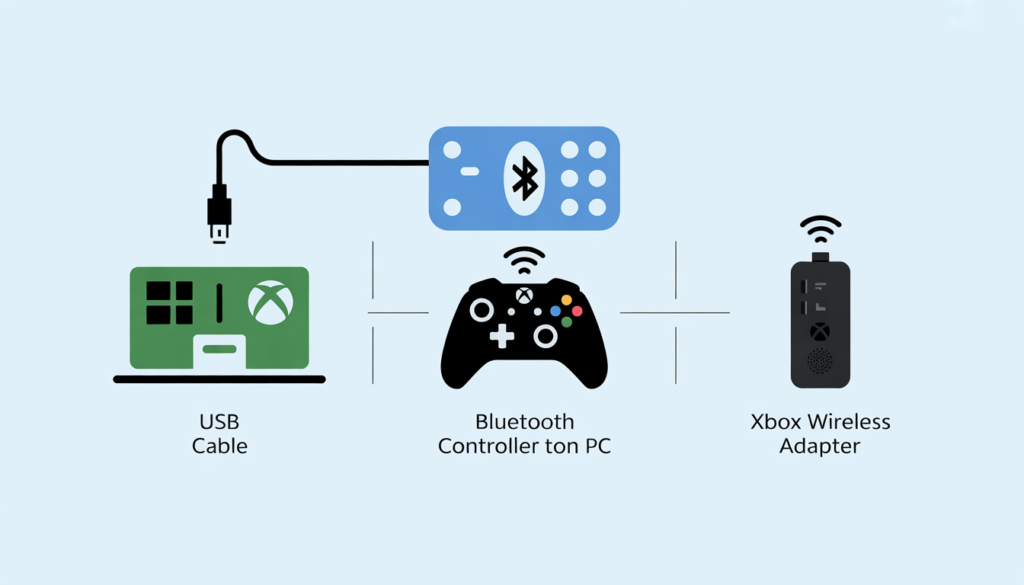
Connecting an Xbox controller to your PC is one of the easiest controller setups you can do Windows has native Xbox controller support built in. But there are three different connection methods, each with slightly different steps, and choosing the wrong one can cause detection issues. This guide covers all three: USB cable, Bluetooth, and the Xbox Wireless Adapter.
Method 1 – USB cable (simplest, most reliable)
What you need
Xbox Series X/S controller: a USB-A to USB-C cable. Xbox One controller: a USB-A to Micro USB cable (the same cable used for older Android phones). The cable must be a data cable some cheap cables are power only and will charge the controller but not transmit data.
Steps
- Plug the USB cable into your PC and into the top of the Xbox controller
- Windows will automatically detect the controller and install the Xbox controller driver
- The controller’s Xbox logo will light up solid white indicating it is connected
- No additional software installation is required
USB connection is the most reliable method for testing and gaming. There is no wireless latency, no pairing process, and the controller charges while connected.
Method 2 – Bluetooth
Requirements
Your PC must have Bluetooth hardware. Most modern laptops have Bluetooth built in. Desktop PCs often do not check Device Manager → Bluetooth to confirm. If Bluetooth is not listed, you need a USB Bluetooth adapter (available for a few dollars). Your Xbox controller must support Bluetooth. Xbox Series X/S controllers all support Bluetooth. Xbox One controllers with the 3.5mm headphone jack (the headphone port on the front) support Bluetooth. Older Xbox One controllers without the headphone jack do not support Bluetooth.
Steps
- On your PC, open Settings → Bluetooth & devices → Add device → Bluetooth
- Hold the Pair button on the top of the Xbox controller (the small button near the USB port) until the Xbox logo flashes rapidly this puts it into pairing mode
- Select Xbox Wireless Controller from the list of available Bluetooth devices on your PC
- The Xbox logo will glow solid white once paired
Note: Bluetooth Xbox controllers may show slightly higher input latency than wired or Xbox Wireless Adapter connections. For competitive gaming, wired or the Wireless Adapter is recommended.
Method 3 – Xbox Wireless Adapter for Windows
The Xbox Wireless Adapter is a small USB dongle that uses Microsoft’s proprietary wireless protocol the same protocol used by the Xbox console itself. It provides lower latency than Bluetooth and can connect up to 8 controllers simultaneously.
- Plug the Xbox Wireless Adapter into a USB port on your PC
- Windows will install the driver automatically (or download it from Windows Update)
- Hold the Pair button on the controller until the Xbox logo flashes
- Press the Pair button on the Wireless Adapter (the small button on the device itself)
- The controller will connect within a few seconds
The Xbox Wireless Adapter is sold separately and is not included with any Xbox controller. It is the recommended option for PC gaming if you want wireless play without the latency of Bluetooth.
How to verify your Xbox controller is working on PC
Once connected by any method, verify every input is working correctly using the TechTester gamepad checker:
- Open techtester.online/gamepad-checker/ in Chrome or Edge
- Press any button on your controller — it will appear in the detected controllers list
- Test every button: A, B, X, Y, LB, RB, LT, RT, thumbstick clicks (L3/R3), D-pad all four directions, View, Menu
- Move both thumbsticks fully in all directions and confirm the axes respond smoothly
- Release both sticks completely and confirm the axes return to 0.00 — confirming no drift
Troubleshooting Xbox controller PC connection issues
Controller not detected after connecting via USB
Try a different USB port. Try a different USB cable confirm the cable is a data cable and not a charge only cable. Uninstall and reinstall the Xbox controller driver in Device Manager.
Controller connected via Bluetooth but inputs not registering
Open the gamepad checker and press a button on the controller to activate Gamepad API detection the API requires an initial button press to register the device. If still not detected, unpair and repair the controller.
Controller shows as connected but has wrong button mapping
Some PC games use DirectInput rather than XInput for controller input. Xbox controllers use XInput natively. If a game’s buttons are mapped incorrectly, look for an XInput/DirectInput setting in the game’s controller options, or use a tool like DS4Windows to remap inputs.