
Table of Contents
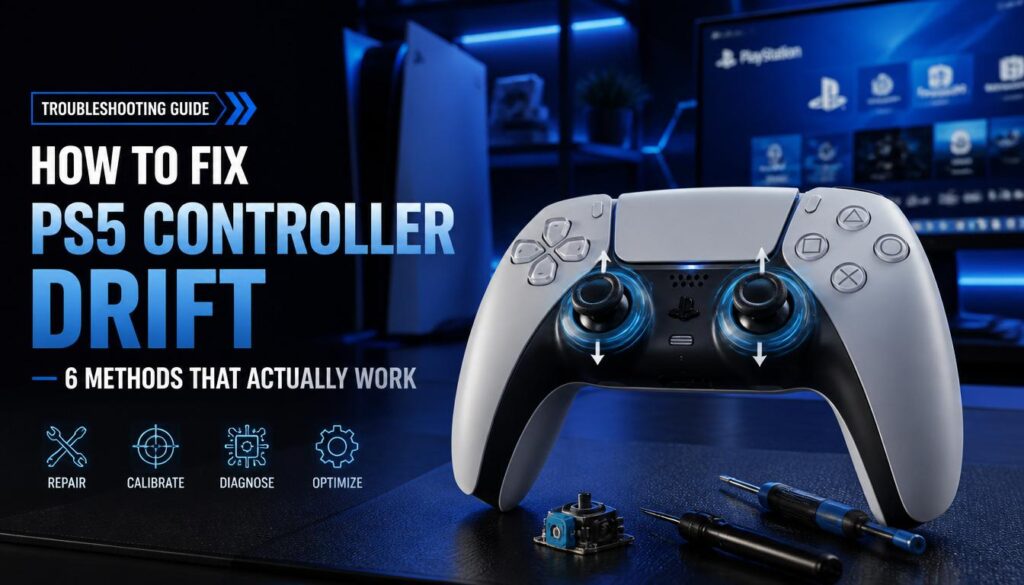
PS5 Controller Drift: How to Test, Diagnose, and Fix It
PS5 DualSense controller drift is one of the most common complaints among PlayStation 5 owners. It happens when your controller’s thumbstick registers movement on screen even when you are not touching it causing your character to move by itself, your camera to drift, or your aim to wander without any input from you.
This guide explains what causes drift, how to test whether your DualSense has it, and what your options are for fixing it.
What is PS5 controller drift?
Controller drift also called joystick drift or analog stick drift is when a thumbstick on your controller sends a directional signal to the console without being physically moved. The stick is reporting a position other than dead centre even when it is at rest and untouched.
On PS5, this manifests as your in game character walking or turning on its own, your camera slowly rotating, your cursor drifting across a menu, or your aim pulling in one direction during gunfights.
What causes DualSense drift?
Worn potentiometers
The thumbstick mechanism uses a small component called a potentiometer to measure the stick’s position. After thousands of hours of use, the carbon contact tracks inside the potentiometer wear down unevenly. The controller then misreads the stick’s resting position and reports a small offset which the console interprets as directional input.
Debris and dust buildup
Dust, skin oils, and debris accumulate around the base of the thumbstick over time. This physical obstruction prevents the stick from returning perfectly to centre, causing a consistent positional offset.
Firmware calibration drift
In some cases, the potentiometer itself is fine but the controller’s firmware has developed a calibration offset. This can sometimes be fixed with a controller reset rather than hardware repair.
How to test your PS5 controller for drift
The most accurate way to test for drift is to use an online gamepad tester that shows you the raw axis values from the thumbstick the actual numbers your controller is reporting, not an in game interpretation.
- Connect your PS5 DualSense to your PC via USB-C cable (most reliable for testing)
- Open the TechTester gamepad checker at techtester.online/gamepad-controller-checker/
- Press any button once to activate detection your controller will appear on screen
- Completely release both thumbsticks and do not touch the controller
- Watch the axis value readouts for Left Stick X, Left Stick Y, Right Stick X, Right Stick Y
- A healthy controller will show values at or very close to 0.00 on all four axes
- If any axis reads above 0.05 consistently while the stick is fully released, drift is confirmed
The advantage of this test over testing in a game is that it shows the raw hardware output it removes all game side dead zone settings and gives you the true position the hardware is reporting.
How bad is the drift? Understanding the numbers
0.00 to 0.03 – normal, no drift
A tiny amount of variation in the axis readings is normal and is called the natural dead zone. Values in this range at rest are not drift and will not cause visible movement in most games.
0.05 to 0.10 – mild drift
Mild drift may not be visible in games that have a built-in dead zone setting, but it will appear in games with no dead zone or a very small dead zone. Racing games and shooters with precise aiming are most affected.
Above 0.15 – significant drift
At this level, drift will be clearly visible in most games regardless of dead zone settings. The controller needs repair or replacement.
How to fix PS5 controller drift
Fix 1 — Clean around the thumbstick base
Power off the controller. Dip a cotton swab in isopropyl alcohol (90% or higher). Carefully rotate the cotton swab around the base of the drifting thumbstick while gently moving the stick in circles. Allow to dry for 5 minutes. Test again using the gamepad checker. This fixes drift caused by debris in a significant number of cases.
Fix 2 — Reset the controller
There is a small reset button on the back of the DualSense near the L2 trigger. Use a pin or paperclip to press and hold it for 5 seconds with the controller powered off. Reconnect via USB-C and pair to your PS5. This can clear firmware calibration drift.
Fix 3 — Adjust the dead zone in game settings
Many games offer a dead zone or stick sensitivity adjustment in their settings. Increasing the dead zone masks mild drift by telling the game to ignore small amounts of stick movement. This does not fix the hardware it just hides the symptoms. It is a short term workaround, not a solution.
Fix 4 — Sony warranty repair
If your DualSense is under warranty (12 months from purchase in most countries), contact Sony PlayStation Support. Sony has acknowledged drift as a known issue and has repaired or replaced affected controllers under warranty. You need proof of purchase.
Fix 5 — Replace the potentiometer
For out of warranty controllers, a potentiometer replacement repair can be done by a qualified electronics repair shop or as a DIY repair for experienced users. Replacement potentiometers compatible with the DualSense are widely available online. This is a permanent fix but voids any remaining warranty.
Is drift covered under warranty?
Sony PlayStation’s standard warranty covers manufacturing defects for 12 months from purchase. Drift caused by normal wear is a grey area Sony has historically processed drift repairs under warranty when the controller is less than 12 months old, but it is not guaranteed. Third party retailers may offer different warranty terms. In some countries, consumer protection law may extend your rights beyond the manufacturer warranty period.