
Table of Contents
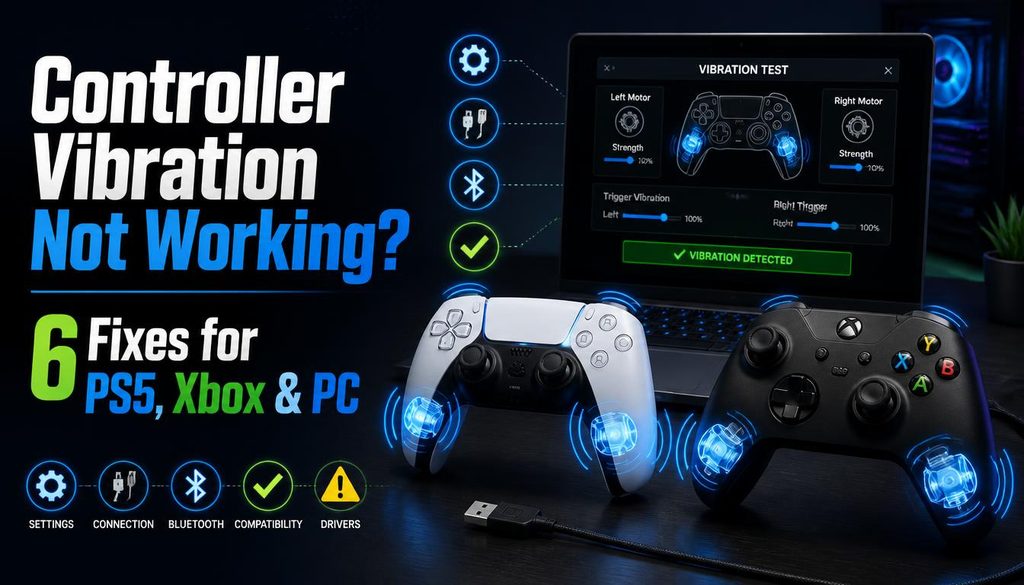
Controller Vibration Not Working? 6 Fixes for PS5, Xbox and PC
Test the rumble motors first
Connect your controller to your PC and open techtester.online/controller vibration test/ in Chrome or Edge. Use the vibration sliders to trigger the left motor (low frequency rumble), right motor (high frequency vibration), and trigger motors on PS5 DualSense and Xbox Series controllers. If the motors respond in this test, the hardware is working and your fix is in software settings. If the motors do not respond at all, the fault is hardware.
Fix 1 Check the in game vibration setting
Most games have a controller vibration setting that is independent of Windows or console settings. If vibration was working and stopped, check whether the game is vibration toggle was accidentally turned off. Game Settings then Controls or Controller then Vibration or Rumble confirm it is enabled. This is the most common cause of vibration stopping in a specific game without it stopping in all games.
Fix 2 Check Windows controller settings
- Press Windows key + R and type joy.cpl then press Enter
- Find your controller in the list and click Properties
- Go to the Test tab
- Click the Test button for Force Feedback or Vibration
- If vibration triggers here, Windows detects the motors correctly the issue is in the specific game or application settings
- If no vibration occurs here, the driver or hardware is the issue proceed to Fix 3
Fix 3 Update or reinstall controller driver
- Device Manager then expand Human Interface Devices
- Right click your controller then Update driver then Search automatically
- If no update found, right click then Uninstall device then disconnect controller then reconnect
- Windows reinstalls the driver fresh on reconnection
For PS5 DualSense: DS4Windows or the Sony official PC driver may be needed. For Xbox controllers: Xbox Accessories app from the Microsoft Store. For generic controllers: the manufacturer website may have updated drivers.
Fix 4 Disable Steam controller configuration
Steam is controller configuration can interfere with vibration in non Steam games and occasionally in Steam games. Steam then Settings then Controller then Desktop Configuration then disable vibration there. Also check Steam then Settings then Controller then General Controller Settings and confirm the vibration toggle matches your preference.
Fix 5 Test on a different cable or connection
Bluetooth controller connections occasionally have issues transmitting vibration commands the motor actuation signals require a reliable bidirectional connection. If your controller is connected via Bluetooth and vibration is not working, try connecting via USB cable. USB is always more reliable for vibration than Bluetooth, particularly for generic and third party controllers.
Fix 6 Hardware fault confirmed
If the controller fails the vibration test at techtester.online/controller vibration test/ via both USB and Bluetooth, the rumble motors or the motor driver circuit has a hardware fault. For PS5 DualSense: contact Sony Support vibration failure may be covered under the 12 month warranty. For Xbox: contact Xbox Support at support.xbox.com. For Nintendo Joy Con: the HD Rumble motors are delicate Nintendo offers repairs at support.nintendo.com.
FAQ
Q: Why is my PS5 controller not vibrating?
First test at techtester.online/controller vibration test/ to confirm whether the hardware is working. If motors do not respond: check the in game vibration setting, check PS5 Settings then Accessories then Controllers then Vibration Intensity, and ensure the controller is connected via USB not Bluetooth for testing. If the hardware still does not vibrate, contact Sony Support for warranty repair.