
Table of Contents
Arabic Keyboard on Mac — Enable, Test, and Fix Arabic Typing on macOS
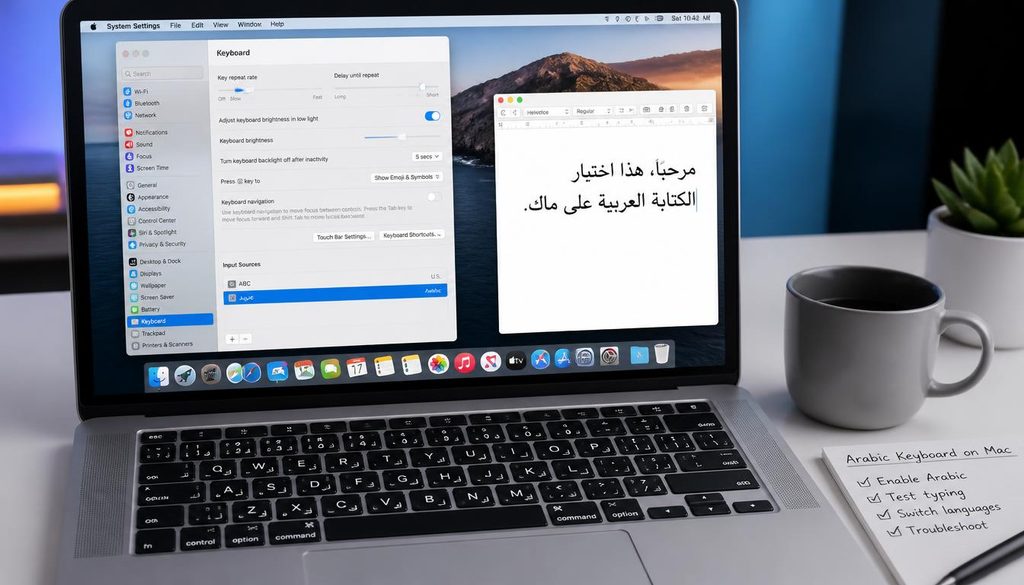
| Quick answer: Test your Arabic keyboard on Mac right now at techtester.online/arabic-keyboard-checker-3/ in Safari or Chrome press each Arabic key and confirm it registers with full RTL support. To enable Arabic on Mac: System Settings then Keyboard then Input Sources then + then search Arabic then add Arabic. |
How to enable Arabic keyboard on Mac
- Apple menu then System Settings (macOS Ventura+) or System Preferences (older macOS)
- Click Keyboard then Input Sources
- Click the + button at the bottom left
- In the search box type Arabic
- Select Arabic from the list then click Add
- The language icon appears in the menu bar click it to switch between English and Arabic
- Keyboard shortcut to switch: Control + Space (default) or Command + Space depending on your settings
Arabic keyboard layout on Mac key differences from Windows
Mac Arabic keyboard layout is slightly different from Windows Arabic layout. The Arabic letters are in the same positions across both (following the standard Arabic QWERTY layout) but some punctuation and special characters differ:
- Comma: Mac Arabic uses ، (Arabic comma) where standard keyboards use ,
- Semicolon: Mac uses ؛ (Arabic semicolon)
- Question mark: Mac Arabic uses ؟ (Arabic question mark, right-facing)
- Numerals: Mac Arabic can switch between Arabic-Indic numerals (٠١٢٣) and Western numerals (0123) in System Settings
How to test Arabic keyboard on Mac
- Enable Arabic input source (steps above)
- Open techtester.online/arabic-keyboard-checker-3/ in Safari or Chrome
- Switch to Arabic input (click language icon or use keyboard shortcut)
- Press each key on your keyboard — Arabic characters should register on the virtual keyboard display
- Any key that does not register is either not in the Arabic layout for that key position or has a hardware fault
Arabic keyboard not working on Mac — fixes
- Arabic not appearing after pressing keys: confirm Arabic input source is selected in menu bar you must switch to Arabic before testing, not just add it
- Wrong characters appearing: Mac may be using the wrong Arabic keyboard variant. Remove the Arabic input source and re-add it, selecting the correct variant for your region.
- Keys not registering in the tester: try Safari instead of Chrome, or vice versa. Some browsers handle Arabic keyboard events differently.
- Autocorrect interfering: disable autocorrect while testing System Settings then Keyboard then Text Input then Edit then disable autocorrection
How do I type Arabic on a Mac?
System Settings then Keyboard then Input Sources then + then search Arabic then Add. A language icon appears in your menu bar. Click it or press Control+Space to switch between English and Arabic. Test each Arabic key at techtester.online/arabic-keyboard-checker-3/
| Test your Arabic keyboard on Mac right now: techtester.online/arabic-keyboard-checker-3/ Full RTL support, free, no download |