
Table of Contents
How to Test Microphone Online
Whether you are about to join a video call, start streaming, record a podcast, or just bought a new microphone, testing it takes under 30 seconds with the right tool. This guide explains how to test your microphone online for free, what the results mean, how to fix common microphone problems, and what a good microphone setup looks like.
| how to test microphone online right now free, no download: techtester.online/mic-tester/ Open the page, allow microphone access, and your live waveform appears immediately. |
Why test your microphone online?
Testing your microphone in a browser rather than downloading a dedicated app has several advantages. It works immediately without installation on any device Windows, Mac, Linux, Android, and iOS. It tests the microphone at the same permission level that video calling apps use, which means if it works in the browser test it will work in Zoom, Google Meet, Discord, and Microsoft Teams. And a browser based test like TechTester shows you live data waveform, volume level in decibels, and frequency not just a yes or no answer.
The most common reasons to test your microphone online are:
- Before an important video call or meeting to confirm audio is working
- After buying a new microphone to verify it is functioning correctly
- When your microphone suddenly stops working in a specific application
- To compare two microphones and see which has better volume and signal quality
- To identify background noise problems before a recording session
- After a software or driver update that may have affected audio settings
How to test your microphone online
Step 1 – Open the TechTester microphone tester
Go to techtester.online/mic-tester/ in your browser. The microphone tester uses the Web Audio API built into your browser no plugins, extensions, or downloads are required. The page works in Chrome, Firefox, Edge, Safari, and Opera on all operating systems and on mobile browsers.
Step 2 – Allow microphone access
When the page loads, your browser will display a permission prompt asking whether techtester.online can access your microphone. Click Allow. This permission is required for the browser to read your audio input. TechTester does not record or transmit your audio to any server all processing happens locally in your browser.
If you accidentally clicked Block or if the permission prompt did not appear, click the padlock icon to the left of the URL in your browser’s address bar, find the Microphone permission, change it from Block to Allow, and refresh the page.
Step 3 – Speak into your microphone and read the results
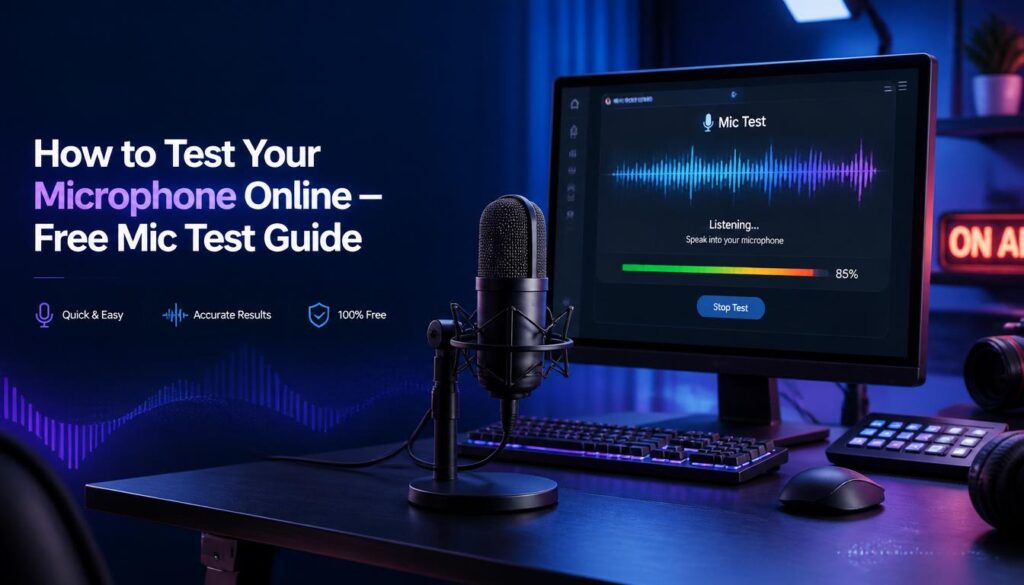
Once permission is granted, speak normally into your microphone. Watch the live waveform display it should move dynamically as you speak. The TechTester mic tester shows four pieces of information simultaneously: the live waveform showing your audio signal in real time, your volume level in decibels (dB), the dominant frequency of your voice in hertz (Hz), and the name of the active microphone device.
Step 4 – Check the volume level
The volume level displayed in decibels tells you whether your microphone input is in the right range for calls and recordings. A good speaking volume for video calls, streaming, and podcasting should peak between -20 dB and -6 dB when speaking at your normal volume. Below -30 dB means your microphone is too quiet and will sound faint to others. Above -3 dB means the signal is clipping and will distort.
Step 5 – Record and play back
Click the Record button in the TechTester mic tester and speak a few sentences at your normal volume and distance from the microphone. Click Stop then Play. Listen to the playback carefully this is exactly how you sound to others on calls and recordings. Listen for: background noise (fan, air conditioning, keyboard clicks), room echo or reverb, distortion when your voice gets louder, and overall clarity of your voice.
Understanding your mic test results
What a good result looks like
A healthy microphone test shows a waveform that moves clearly when you speak and returns to flat silence when you stop. The volume level peaks between -20 dB and -6 dB consistently. The frequency display shows your voice’s fundamental frequency (typically 85-255 Hz for speaking voice). The device name shows the correct microphone. Playback sounds clear and natural with minimal background noise.
What a bad result looks like
Problems to watch for: a completely flat waveform (microphone is not detected, muted, or permission is blocked), a waveform that moves even in silence (background noise problem), volume consistently below -30 dB (microphone too quiet check system volume settings and mic position), distortion or clipping in the playback (microphone too loud reduce system input volume or move further from the mic), or echo in the playback (room acoustics issue or monitoring feedback).
How to fix common microphone problems
Microphone not detected flat waveform
Check browser permission is set to Allow (click the padlock icon in the address bar). Check the system microphone settings Windows: right click speaker icon → Sound settings → Input. Mac: System Settings → Sound → Input. Confirm the correct microphone is selected. Check the microphone is not physically muted (look for a mute button or LED on the device). Try a different browser.
Microphone too quiet – volume below -30 dB
In Windows: right click speaker icon → Sound settings → Input → select your microphone → Properties → increase the input volume slider. Also check Microphone Boost in the advanced properties. In Mac: System Settings → Sound → Input → increase the input volume. On USB microphones, check whether the companion app (Blue Sherpa, RODE Connect etc.) has a separate gain control.
Background noise visible in waveform
Background noise shows as movement in the waveform when you are not speaking. Sources include computer fans, air conditioning, electrical hum (from nearby power cables or fluorescent lighting), and room echo. Short term fixes: move to a quieter location, bring the microphone closer to your mouth, and close doors and windows. Long term: consider a directional (cardioid) microphone that rejects sound from the sides and rear.
Microphone works in browser test but not in Zoom or Discord
If your microphone passes the TechTester mic test but does not work in a specific application, the issue is in that application’s audio settings, not your hardware. Open the audio settings in Zoom (Settings → Audio), Discord (Settings → Voice and Video), or Teams (Settings → Devices) and manually select your microphone from the input device dropdown.
Which browsers work for the online mic test?
The TechTester microphone tester at techtester.online/mic-tester/ works in all major browsers: Google Chrome (full support, recommended), Microsoft Edge (full support), Mozilla Firefox (full support), Safari on macOS 14.1 and later (full support), Safari on iOS 16 and later (full support), Opera (full support), Samsung Internet on Android (full support).
The microphone test works on Windows, macOS, Linux, Android, and iOS. On mobile, the test uses the device’s built-in microphone by default. On devices with a headset connected, the headset microphone is typically selected automatically.
FAQ:
Open techtester.online/mic-tester/ in your browser and allow microphone access when prompted. Speak into your microphone and watch the waveform if it moves your microphone is working. You can also see your volume level in dB, frequency in Hz, and record a clip to play back. Completely free, no download, no signup.
The most common cause is that browser microphone permission has been denied. Click the padlock icon in your browser address bar, find the Microphone permission, and change it from Block to Allow. Then refresh the page. Other causes: wrong device selected in the device dropdown, microphone physically muted, or outdated audio drivers on Windows.
For voice calls, streaming, and podcasting, aim for peaks between -20 dB and -6 dB when speaking at your normal volume. Target peaks around -12 dB for the cleanest audio. Below -30 dB is too quiet and above -3 dB will distort.
Yes. The TechTester microphone tester works on iPhone and iPad using Safari (iOS 16 and later). Allow microphone access when Safari prompts you. The test uses the device’s builtin microphone unless a headset is connected.
Yes. The TechTester mic tester works with all USB microphones including Blue Yeti, HyperX QuadCast, RODE NT USB, Elgato Wave, Shure MV7, and all other USB audio devices. Connect the USB microphone before opening the page and use the device selector to confirm it is selected.
If your microphone passes the TechTester mic test it is working correctly. The issue is in Zoom’s audio settings. Open Zoom → Settings → Audio and manually select your microphone from the Microphone dropdown. If it shows a different device, switch to your correct microphone and test a call.