
Table of Contents
MacBook Trackpad Not Working? 6 Fixes for macOS
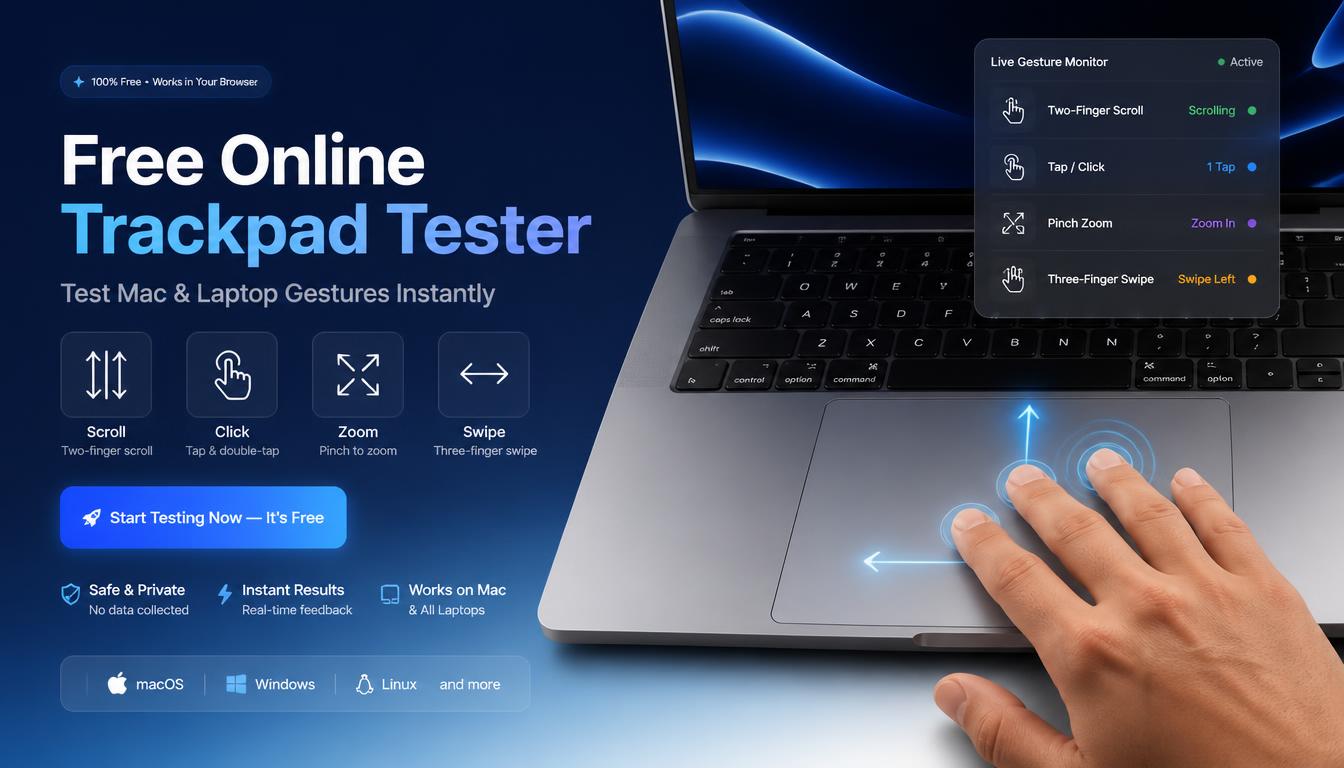
| Quick answer: Test your MacBook trackpad at techtester.online/touchpad-tester/ in Safari or Chrome to confirm which gestures are broken. If tapping works but scrolling does not, the fix is in System Settings. If nothing works at all, try the SMC reset below. |
Fix 1 — Check macOS Trackpad settings
- Apple menu then System Settings (macOS Ventura and later)
- Click Trackpad in the left sidebar
- Check Point and Click tab — confirm Tap to click is enabled if you use tap
- Check Scroll and Zoom tab — confirm Scroll direction and Pinch to zoom are enabled
- Check More Gestures tab — confirm Mission Control, Swipe between pages etc are enabled
macOS updates occasionally reset trackpad gesture settings. Check all three tabs and re enable any gestures that were turned off.
Fix 2 — Disable Force Click and check pressure
If your MacBook trackpad clicks but does not register Force Click actions (press harder for Look Up, Quick Actions etc), Force Click may be disabled. System Settings then Trackpad then Point and Click then enable Force Click and haptic feedback. Also adjust the Click pressure slider — some users accidentally set it to Firm which requires much harder presses than expected.
Fix 3 — SMC reset (most effective for hardware-level issues)
Apple Silicon MacBook (M1, M2, M3, M4)
Shut down completely. Wait 30 seconds. Power on normally. Apple Silicon Macs automatically reset the SMC on a complete shutdown — no key combination needed.
Intel MacBook (2018 and later with T2 chip)
- Shut down the MacBook
- Hold Left Shift + Left Control + Left Option + Power simultaneously for 10 seconds
- Release all keys
- Press Power to start normally
Intel MacBook (2017 and earlier)
- Shut down
- Hold Shift + Control + Option (left side keys) + Power for 10 seconds
- Release then power on
Fix 4 — NVRAM reset
NVRAM stores trackpad settings including scroll direction and click sensitivity. Resetting it can resolve persistent trackpad behavior issues.
- Shut down the MacBook
- Press Power, then immediately hold Command + Option + P + R
- Hold for 20 seconds until the MacBook restarts twice (Intel) or the Apple logo appears and disappears (Apple Silicon)
- Release and let it boot normally
- Reconfigure your trackpad settings in System Settings as they will reset to defaults
Fix 5 — Update macOS
Apple releases trackpad driver fixes in macOS point updates. Apple menu then System Settings then General then Software Update. If an update is available install it trackpad issues introduced by a previous update are often fixed in the next update.
Fix 6 — Swollen battery diagnosis
A swollen battery is the most common hardware cause of MacBook trackpad failure. The battery physically expands and pushes against the trackpad from below. Signs: trackpad feels stiff or uneven, click sounds different on left vs right side, laptop case is separating near the trackpad, trackpad is visibly raised. This is a safety issue stop using the MacBook and take it to an Apple Authorised Service Provider immediately.
Q: Why is my MacBook trackpad not responding?
Most common causes: trackpad gestures disabled in System Settings then Trackpad, firmware issue fixable with SMC reset, macOS update that reset settings, or swollen battery pushing against trackpad. Test at techtester.online/touchpad-tester/ to confirm which gestures are affected.
| Test your MacBook trackpad: techtester.online/touchpad-tester/ — works in Safari and Chrome on macOS |