
Table of Contents
Fn Key Not Working on Lenovo Laptop? 5 Fixes
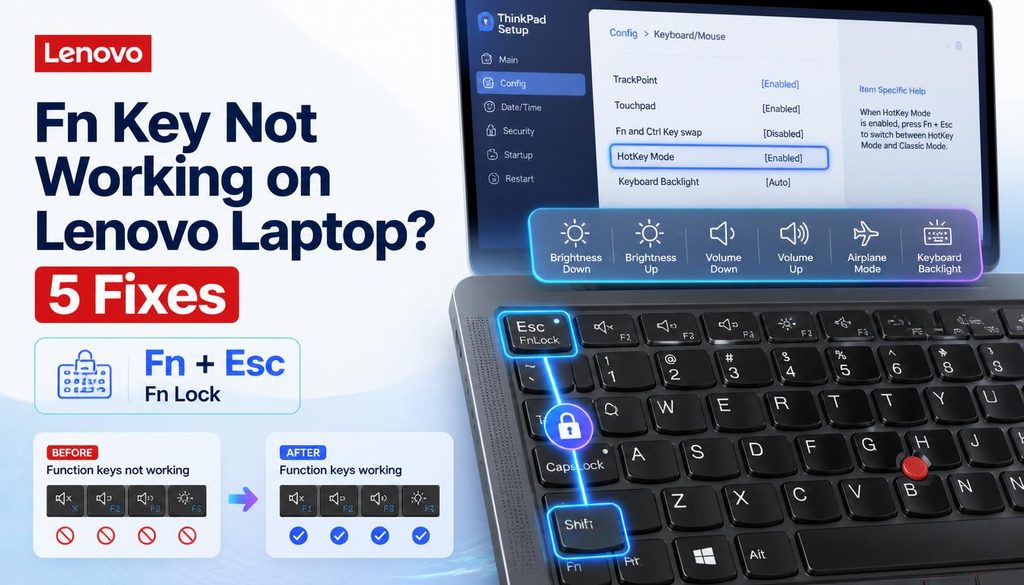
| Quick answer: The most common cause of Fn key issues on Lenovo is Fn Lock being active (the F keys behave as function keys without needing Fn held) or BIOS HotKey Mode being set to the wrong option. Try pressing Fn + Esc first this toggles Fn Lock on most Lenovo keyboards. |
Fix 1 Toggle Fn Lock (try this first)
On most Lenovo keyboards, pressing Fn + Esc toggles Fn Lock. When Fn Lock is ON, the top row keys act as F1 F12 by default and the special functions (brightness, volume, etc.) require holding Fn. When Fn Lock is OFF, the special functions work by default and F1 F12 require holding Fn. Check the Esc key if it has an Fn Lock indicator icon (usually a padlock), this confirms your keyboard supports Fn Lock toggle.
Fix 2 Change HotKey Mode in BIOS
- Restart the Lenovo laptop and press F2 or Enter then F1 at the Lenovo logo to enter BIOS
- Navigate to Configuration tab
- Find HotKey Mode
- Toggle between Enabled and Disabled
- Enabled: Fn keys act as special functions by default (volume, brightness)
- Disabled: Fn keys act as F1 F12 by default
- Save with F10 and restart
Fix 3 Reinstall Lenovo Hotkey driver
- Go to support.lenovo.com and search for your exact model number (found on the sticker on the bottom of the laptop)
- Navigate to Drivers and Software
- Search for Hotkey Features Integration or Lenovo Hotkeys
- Download and install the latest version
- Restart the laptop
The Lenovo Hotkey driver is the software that maps the Fn key combinations to their functions. If it is missing or corrupted, Fn key combinations may not register correctly.
Fix 4 Update or reinstall keyboard driver
- Device Manager then Keyboards
- Right click HID Keyboard Device or Standard PS/2 Keyboard then Update driver
- If no update available, right click then Uninstall device then restart
- Windows reinstalls the keyboard driver on restart
Fix 5 Check Lenovo Vantage settings
If Lenovo Vantage is installed (pre installed on most Lenovo laptops), open it and check the Input section. Vantage has a Keyboard settings section where function key behavior can be set. Ensure the Hotkey Mode setting in Vantage matches your preference. Lenovo Vantage settings can sometimes override BIOS HotKey Mode settings.
FAQ
Why is my Fn key not working on Lenovo?
Most common causes: Fn Lock is active (press Fn + Esc to toggle), BIOS HotKey Mode is set to the opposite of what you want (enter BIOS → Configuration → HotKey Mode to change), or the Lenovo Hotkey driver needs reinstalling (download from support.lenovo.com for your model).