
Table of Contents
Best Free GPU Monitoring Tools in 2026 Browser and Desktop
| Quick answer: For a quick GPU performance check with no download, use techtester.online/gpu tester/ it detects your GPU name, measures real time FPS, produces a benchmark score, and runs a thermal throttling stress test directly in Chrome. For continuous monitoring with temperature, usage, and VRAM readings, MSI Afterburner with RivaTuner Statistics Server is the most widely used free desktop tool. |
Browser based GPU monitoring no download needed
TechTester GPU Tester (free, no download)
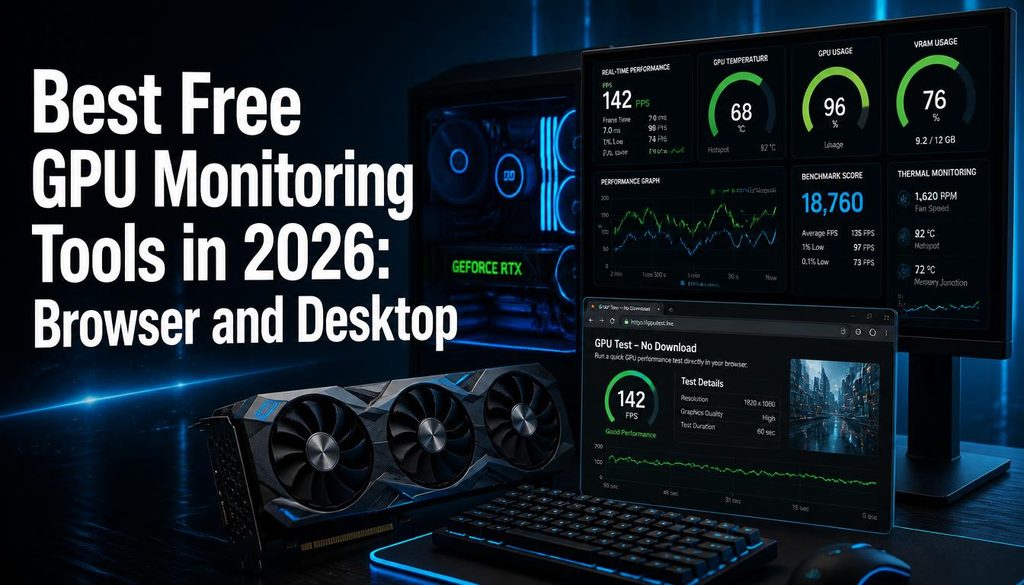
Open techtester.online/gpu tester/ in Chrome or Edge. The tool detects your GPU name and manufacturer automatically using WebGL, measures real time FPS across progressive complexity levels, produces a 0 10,000 benchmark score with a 6 tier interpretation table, and includes a stress test mode that runs your GPU at sustained load to detect thermal throttling. Results appear in under 2 minutes. No download, no account, no installation.
Best for: quick performance checks, verifying a GPU is working after a driver update, checking if a score has changed since last month, or confirming thermal throttling is causing performance issues.
Desktop GPU monitoring tools
MSI Afterburner + RivaTuner Statistics Server (free)
MSI Afterburner is the most widely used free GPU monitoring tool regardless of GPU brand it works with NVIDIA, AMD, and Intel Arc graphics. It monitors GPU temperature, GPU usage percentage, VRAM usage, core clock speed, memory clock speed, power consumption, and fan speed in real time. RivaTuner Statistics Server (bundled with Afterburner) overlays these metrics on screen while gaming. Both are free and updated regularly.
Best for: monitoring GPU health during gaming sessions, setting custom fan curves to prevent thermal throttling, overclocking, and logging temperature data over time.
GPU Z by TechPowerUp (free)
GPU Z provides detailed static information about your GPU manufacturer, architecture, shader count, memory type and speed, PCIe interface version, BIOS version, and sensor data. Unlike Afterburner it is an information tool rather than a monitoring overlay. Useful for identifying exactly what GPU is installed and confirming specifications match what was purchased.
Best for: identifying GPU specifications, verifying the GPU is the model advertised, checking VRAM type and speed.
HWiNFO64 (free)
HWiNFO64 monitors every hardware sensor in your PC simultaneously CPU, GPU, RAM, storage, and motherboard sensors all in one interface. The GPU monitoring section includes temperature, usage, VRAM, power draw, and clock speeds. It also integrates with RivaTuner for in game overlay. More comprehensive than Afterburner but has a steeper learning curve.
Best for: comprehensive system wide monitoring, diagnosing whether a problem is GPU specific or system wide.
NVIDIA GeForce Experience Performance Overlay (free)
For NVIDIA GPU owners, the GeForce Experience app includes a performance overlay accessible with Alt+R while gaming. It shows FPS, GPU temperature, GPU usage, VRAM usage, and CPU metrics. Requires an NVIDIA account but the monitoring feature is free. AMD owners have the equivalent in AMD Radeon Software is Performance Overlay.
Best for: NVIDIA or AMD GPU owners who already use the respective companion software and want integrated overlay monitoring without additional tools.
What GPU metrics actually matter
- GPU temperature: under 80°C is healthy under load. Above 90°C risks thermal throttling. Above 95°C sustained is a problem.
- GPU usage: 95 100% during gaming means the GPU is the performance bottleneck. Well below 80% during gaming suggests a CPU bottleneck.
- VRAM usage: if VRAM usage consistently hits 100% during gaming, textures are being compressed or offloaded reduce texture quality settings or consider a GPU with more VRAM.
- FPS: frames per second the most direct indicator of gaming performance. Measure with Afterburner overlay or the TechTester GPU tester benchmark.
FAQ
Q: What is the best free GPU monitoring tool?
For browser based monitoring with no download: TechTester GPU tester at techtester.online/gpu tester/ For continuous in game overlay monitoring: MSI Afterburner with RivaTuner Statistics Server. For GPU specification identification: GPU Z by TechPowerUp. All three are free.