
Table of Contents
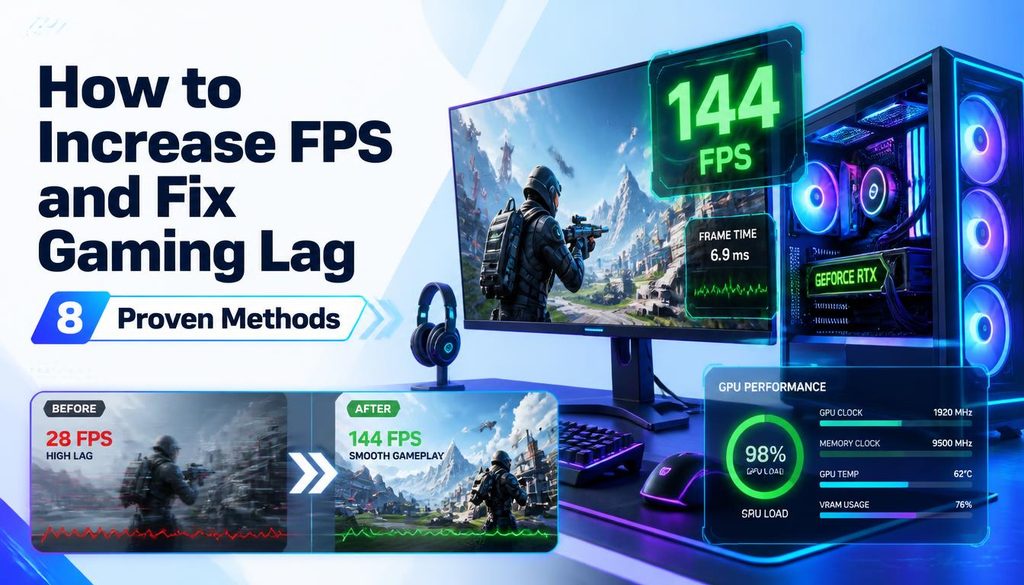
How to Increase FPS and Fix Gaming Lag 8 Proven Methods
| Quick answer: Before changing settings, benchmark your current FPS at techtester.online/gpu tester/ to establish a baseline. Then test again after each change below to measure the actual improvement. This prevents the common mistake of making multiple changes simultaneously and not knowing which one worked. |
Method 1 Update GPU drivers
Outdated GPU drivers are a common cause of FPS drops, stuttering, and lag. NVIDIA and AMD both release driver updates that include performance improvements for specific games. Update via GeForce Experience (NVIDIA) or AMD Adrenalin (AMD). Download directly from nvidia.com or amd.com rather than using Windows Update which frequently installs outdated driver versions.
Method 2 Enable Windows Game Mode
Windows Game Mode prioritises CPU and GPU resources for the active game application. Settings then Gaming then Game Mode then toggle On. Also enable Hardware accelerated GPU scheduling: Settings then System then Display then Graphics then Change default graphics settings then enable Hardware accelerated GPU scheduling. Both are free performance improvements that require no hardware changes.
Method 3 Enable XMP or EXPO in BIOS
If your RAM is not running at its rated speed (test at techtester.online/ram tester/), enabling XMP (Intel) or EXPO (AMD) in BIOS can improve gaming performance by 10 15%. RAM at base JEDEC speed is significantly slower than the rated speed. Enter BIOS (Del or F2 at startup), find Memory settings, enable XMP or EXPO, save and restart.
Method 4 Lower in game graphics settings
The most direct way to increase FPS is reducing the GPU workload. The highest impact settings to lower are: Shadow Quality (highest GPU cost), Ambient Occlusion, Anti aliasing (switch from MSAA to FXAA or TAA), Draw Distance, and Post processing effects. Resolution scaling also has a large impact running at 80% resolution scale gives a 20 30% FPS boost with relatively little visual quality loss.
Method 5 Clean GPU heatsink and check thermals
A GPU throttling due to heat automatically reduces its clock speed to protect the hardware this appears as FPS drops that get worse the longer you play. Clean GPU fans and heatsink fins with compressed air. If temperatures consistently exceed 85°C under gaming load, replace the thermal paste on the GPU die. Test for thermal throttling using the Stress Test mode in the TechTester GPU tester at techtester.online/gpu tester/ a score that starts high then drops during sustained load confirms throttling.
Method 6 Disable V Sync and use G Sync or FreeSync
V Sync caps FPS to your monitor refresh rate and adds up to one full frame of
. Disable V Sync in game settings and replace it with G Sync (NVIDIA) or FreeSync (AMD) if your monitor supports it. Both provide tear free output without the input lag penalty of V Sync. If your monitor does not support adaptive sync, disable V Sync and accept screen tearing for better responsiveness.
Method 7 Close background applications
Discord, Chrome, Steam, and OBS all consume GPU, CPU, and RAM resources even when minimised. Close all non essential applications before gaming. Check Task Manager then Performance to see exactly which applications are consuming resources. OBS in particular can consume significant GPU resources even when not recording or streaming.
Method 8 Set power plan to High Performance
Windows sometimes throttles CPU performance under the Balanced power plan. Control Panel then Power Options then select High Performance. On laptops this setting reduces battery life significantly but maximises gaming performance. For gaming sessions where the laptop is plugged in, always use High Performance or the manufacturer is Gaming power plan.
FAQ
How do I increase FPS on a laptop?
For laptop FPS improvement: plug in (battery saver mode throttles performance), set power plan to High Performance, enable Game Mode in Windows Settings, lower in game graphics settings, update GPU drivers, and clean the laptop vents and heatsink with compressed air. Test your GPU benchmark at techtester.online/gpu tester/ before and after each change to measure actual improvement.