
Table of Contents
How to Test Your Webcam Before a Zoom or Teams Call
| Quick answer: Open techtester.online/webcam-tester/ in Chrome or Edge before your call. Allow camera access. Your live feed appears with resolution, FPS, and quality score. Take a snapshot to see exactly how you look. Test takes 30 seconds and requires no download. |
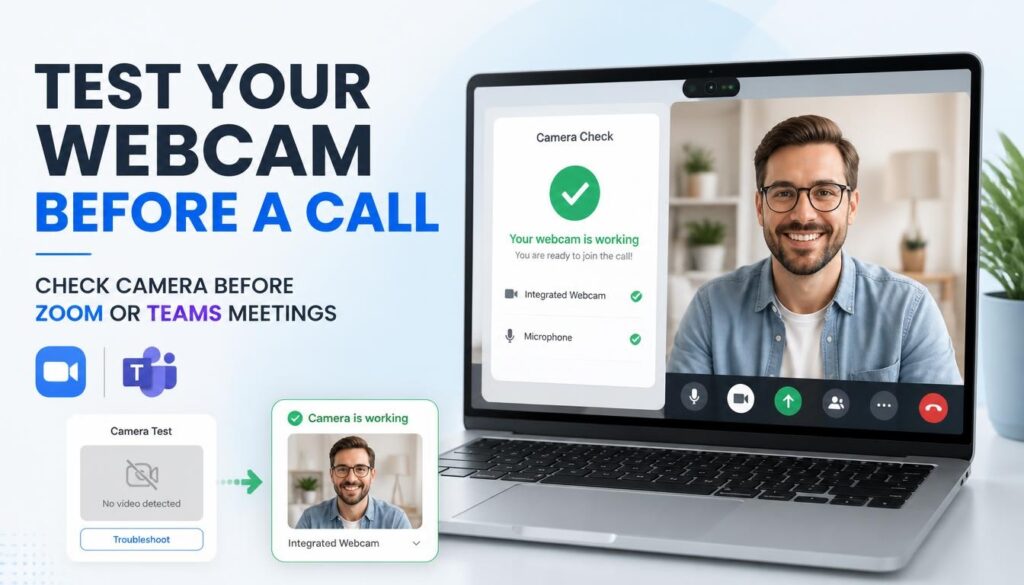
A failed webcam at the start of a video call is one of the most disruptive technical problems in professional and remote work. Testing your webcam 2 minutes before a call eliminates this entirely you see your feed, confirm your lighting, check your background, and fix any issues before the meeting starts.
The 30 second pre call webcam checklist
- Open techtester.online/webcam-tester/ in Chrome or Edge
- Click Allow when the browser asks for camera permission
- Confirm your live feed appears if black screen see fixes below
- Check resolution shows 1280×720 or higher
- Check FPS shows above 24 below 24 appears choppy on calls
- Take a snapshot see exactly how you appear to others
- Check your background in the snapshot what others will see
- Check lighting face should be lit from front, not backlit
- Close the test tab and join your call
What good webcam quality looks like
- Resolution: 1280×720 (HD) minimum, 1920×1080 (Full HD) preferred for professional calls
- Frame rate: above 24fps minimum, 30fps ideal. Zoom and Teams cap streaming at 30fps.
- Lighting: face brightly lit from front. A window behind you creates a silhouette.
- Quality score: TechTester quality score above 70 is good for video calls
Quick fixes if webcam test shows problems
- Black screen: check if another app (Zoom, Teams) is already using the camera close it first
- Wrong camera: use the device selector to switch between laptop camera and external webcam
- Low resolution: your camera may be running in low resolution mode close other video apps and retry
- Poor lighting: face a lamp or window directly even a desk lamp pointed at your face dramatically improves appearance
Also test your microphone before calls
A good webcam with a bad microphone still makes a poor call experience. Test your microphone at techtester.online/mic-tester/ using the same browser session. Record 10 seconds and play back to hear exactly what you sound like before joining.
Q: How do I test my webcam before a Zoom call?
Open techtester.online/webcam-tester/ in Chrome, allow camera access, and take a snapshot. The snapshot shows exactly how you appear to others on Zoom same angle, same resolution, same lighting. Check quality score and confirm FPS above 24 before joining.