
Table of Contents
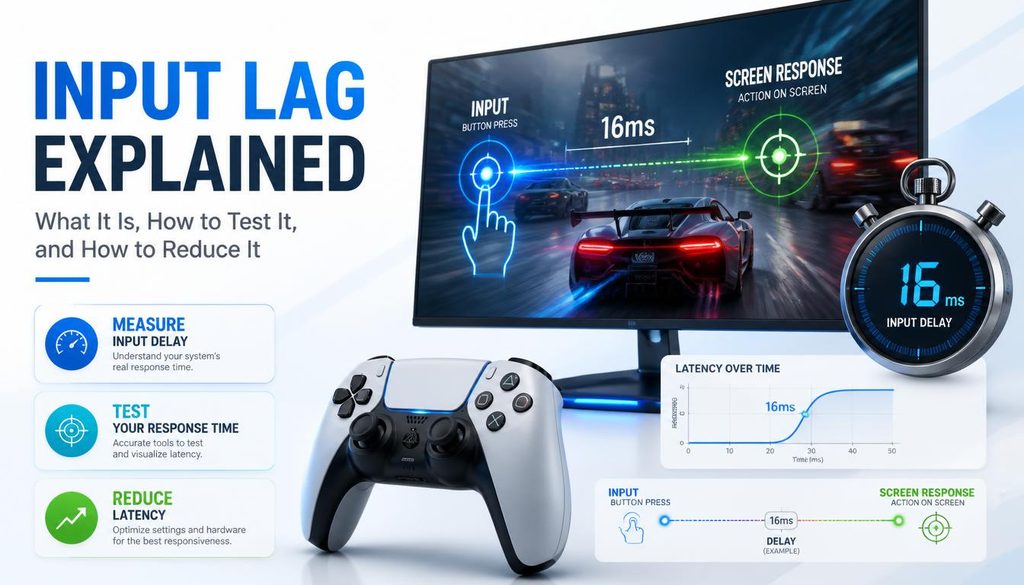
Input Lag Explained — What It Is, How to Test It, and How to Reduce It
| Quick answer: Input lag is the delay between a physical action (mouse click, key press, button press) and seeing the result on your screen measured in milliseconds. Test your input lag free at techtester.online/latency-test/ in Chrome or Edge. Under 16ms is good for gaming. |
What is input lag?
Input lag (also called input latency or system latency) is the total time from when you perform a physical action to when you see its result on screen. When you click in an FPS game, your click must travel through this chain: peripheral sends signal to PC, PC processes the input, game engine updates the state, GPU renders the new frame, display shows the frame. The total time for all steps is your input lag.
Input lag is measured in milliseconds (ms). Lower is better. Under 16ms is generally not noticeable. Above 50ms is noticeably laggy in fast games.
Input lag vs ping — the difference
- Input lag is LOCAL — the delay from your action to your screen. Affects both offline and online games.
- Ping is NETWORK — the round-trip time from your device to a game server. Only affects online multiplayer.
Both affect how responsive gaming feels but from different sources. A game can have perfect ping and still feel laggy if local input lag is high. Test both simultaneously at techtester.online/latency-test/
What causes high input lag?
- Display post processing: HDR, motion smoothing, and local dimming on TVs add 20 to 80ms. Enable Game Mode to disable post processing.
- Wireless peripherals: Bluetooth adds 10 to 40ms. 2.4GHz proprietary wireless adds 1-3ms. Wired adds 0ms.
- V Sync: adds up to one full frame of lag (16.6ms at 60fps). Replace with G Sync or FreeSync.
- Low refresh rate: 60Hz shows a new frame every 16.6ms. 144Hz shows one every 6.9ms. Higher Hz reduces how long you wait after reacting.
- GPU performance: a GPU struggling to maintain frame rate increases rendering time directly adding to input lag.
How to test your input lag for free
Open techtester.online/latency-test/ in Chrome or Edge. Click Run Input Lag Test. Click the large target area 20 times each click measures the time between your click event and the next visual frame rendered. Your average, minimum, and maximum input lag appear after 20 rounds with a rating.
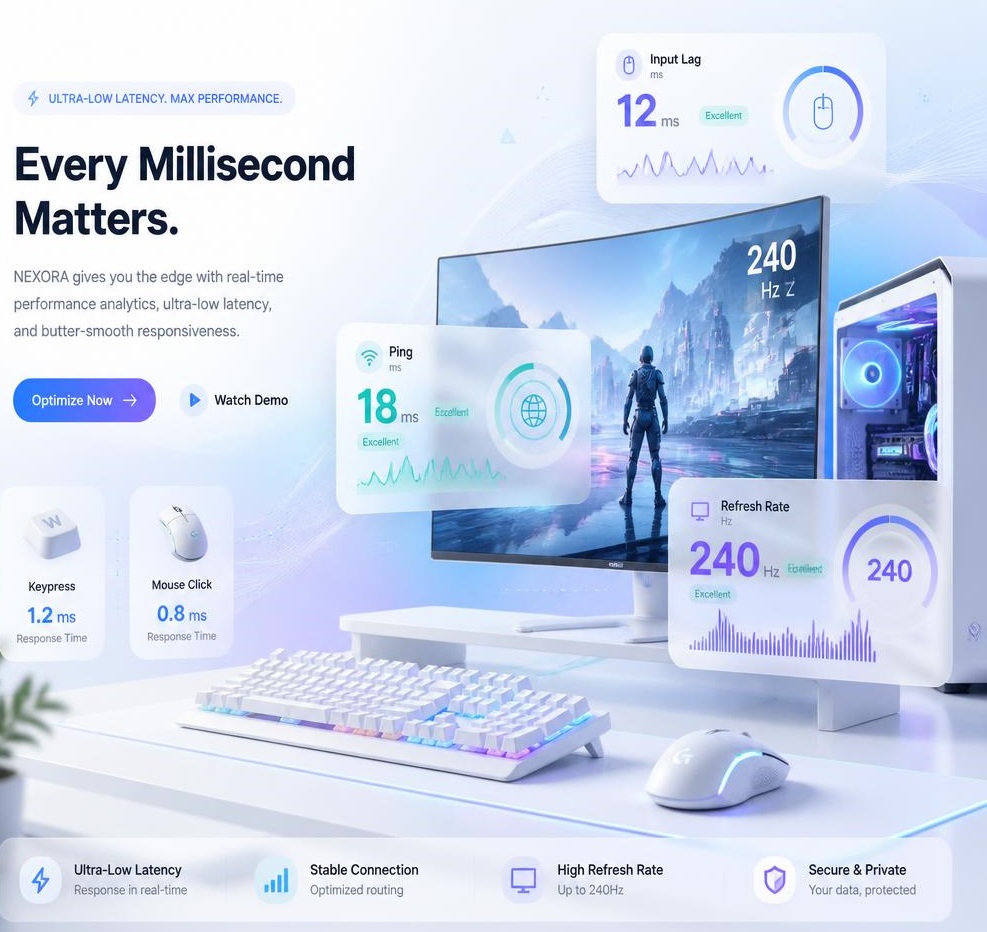
- Under 8ms: Excellent — competitive grade
- 8 to 16ms: Good — great for all gaming
- 16 to 33ms: Average — acceptable for casual gaming
- 33 to 50ms: High — enable Game Mode and check settings
- Above 50ms: Poor — significant issue needs fixing
How to reduce input lag
- Enable Game Mode on your display — single biggest improvement for TV users
- Switch to wired peripherals — eliminate wireless transmission delay
- Confirm monitor is running at rated Hz — check in Display Settings and via the TechTester refresh rate test
- Disable V-Sync — use G Sync or FreeSync instead
- Use DisplayPort instead of HDMI where possible
- Update GPU drivers
- Close background applications consuming GPU and CPU resources
Q: What is a good input lag for gaming?
Under 8ms is competitive grade. Under 16ms is good for all gaming. Under 33ms is acceptable for casual gaming. Above 50ms is poor. Test your input lag at techtester.online/latency-test/