
How to Fix Xbox Controller Not Working on PC (Wired, Wireless, Bluetooth)
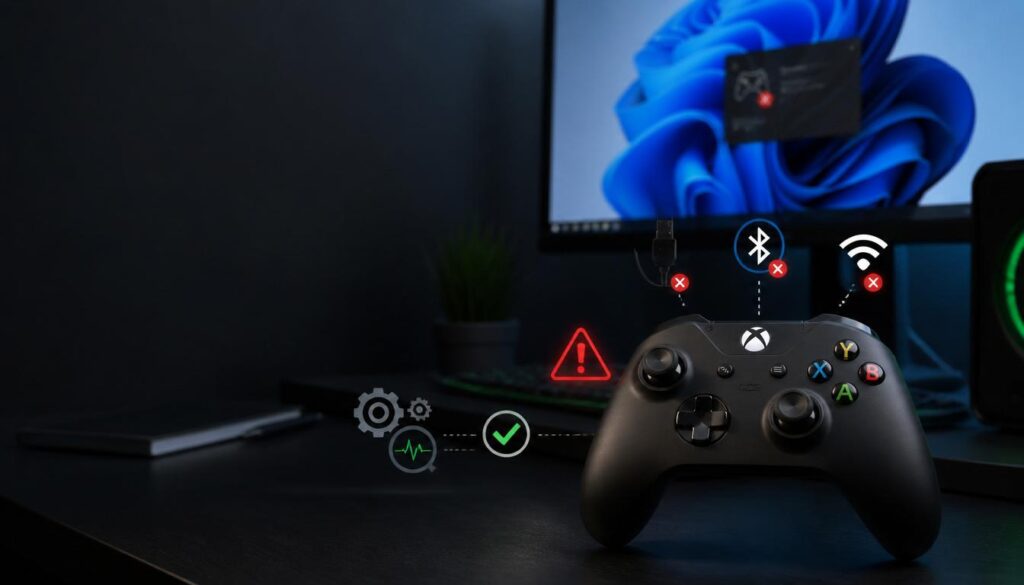
Quick answer: If your Xbox controller is not working on PC, the fastest fixes are: try a different USB cable (charge only cables carry no data), press any button after connecting (Windows requires this to activate detection), or repair the Bluetooth connection. For a full diagnosis of buttons, triggers, and sticks, test your controller at techtester.online/xbox-controller/
Your Xbox controller connected to your PC but nothing is responding. Or it connects fine but specific buttons feel wrong, triggers aren’t registering full range, or a thumbstick seems to drift. This guide covers every fix, starting with the fastest and working toward the more involved solutions and explains how to tell the difference between a connection problem and an actual hardware fault before you do anything else.
Step 1 — Test First, Troubleshoot Second
Before assuming your controller is broken, confirm exactly what is and isn’t working. Open TechTester’s Xbox controller checker in Chrome or Edge, connect your controller, and press any button. Every input buttons, triggers, thumbsticks, D-pad — shows on screen in real time.
This tells you in under 60 seconds whether the problem is:
- A connection issue (controller not detected at all)
- A specific button fault (one or two inputs not registering)
- Trigger calibration (LT or RT showing non-zero values at rest)
- Thumbstick drift (axis values above 0.05 at rest without touching the stick)
Knowing which category you’re in saves you from trying fixes that won’t work for your specific problem.
Fix 2 — Check Your USB Cable (Most Common Cause)
This is the single most common reason an Xbox controller “won’t connect” via USB and it’s the most overlooked.
Xbox Series X/S and Xbox One controllers charge over USB but require a data capable cable to communicate with your PC. Cheap charging only cables carry power but transmit zero data. The controller will appear to be connected (the Xbox logo glows) but Windows receives no input.
How to tell if your cable is the problem: Swap it for a cable you know transfers data (the cable that came with your phone, for instance, if it’s the right connector type). If the controller immediately works, the original cable was charge-only.
Cable types by controller:
- Xbox Series X/S: USB-A to USB-C
- Xbox One (most versions): USB-A to Micro-USB
Also try plugging directly into a USB port on your PC’s motherboard (back panel on desktops) rather than a USB hub or front panel port hubs introduce power and signal issues that disappear when you bypass them.
Fix 3 — Press a Button to Activate Detection
Windows does not automatically report a connected controller to applications until the user presses a physical button. This is a deliberate privacy mitigation in the Gamepad API not a bug. If your controller appears connected in Device Manager but nothing responds in games or the TechTester tool, press any button on the controller. Detection should activate immediately.
Fix 4 — Repair the Bluetooth Connection
If you’re connecting wirelessly via Bluetooth:
On Windows 11 and 10:
- Go to Settings → Bluetooth and devices → find your Xbox controller → click the three-dot menu → Remove device
- On the controller, hold the Pair button (top edge, next to USB port) until the Xbox logo flashes rapidly
- Back on PC: Add device → Bluetooth → select Xbox Wireless Controller
- The logo glows solid when paired
Common Bluetooth problems:
- 2.4GHz interference: WiFi routers, wireless mice, and other Bluetooth devices on the same frequency can cause dropouts. Moving the controller closer to the PC or switching your router to 5GHz often resolves this.
- Steam conflicts: Steam’s controller configuration can intercept Xbox inputs at the system level. If your controller works in the TechTester browser tool but not in a specific game, close Steam entirely and test again.
- Multiple paired devices: If the controller remembers multiple paired devices (like your actual Xbox console), it may be trying to connect to that instead of your PC. Hold the Pair button to force it into pairing mode.
Fix 5 — Use the Xbox Wireless Adapter Instead of Bluetooth
If Bluetooth continues to be unreliable, the Xbox Wireless Adapter for Windows (sold separately, ~$25) is a significantly more stable wireless connection. It uses Microsoft’s proprietary protocol the same one the Xbox console uses rather than standard Bluetooth, giving lower latency and a more reliable connection. Supports up to 8 controllers simultaneously.
Fix 6 — Reinstall or Update the Xbox Controller Driver
Via Device Manager:
- Right-click Start → Device Manager
- Expand Human Interface Devices or Xbox Peripherals
- Right-click your Xbox controller → Update driver → Search automatically
Via Windows Update: Settings → Windows Update → Advanced options → Optional updates → Driver updates — Xbox controller drivers occasionally appear here rather than through Device Manager.
If the driver appears corrupted (controller shows with a yellow warning icon in Device Manager), right click → Uninstall device → restart your PC → reconnect the controller. Windows reinstalls the driver fresh on reconnection.
Fix 7 — Check for Firmware Updates
Microsoft pushes DualSense equivalent firmware updates for Xbox controllers that include stick calibration improvements and input bug fixes.
Via Xbox Accessories app (Windows):
- Install the free Xbox Accessories app from the Microsoft Store
- Connect your controller via USB-C
- The app shows current firmware version and prompts for updates if available
This is particularly worth doing if your controller worked correctly before and started drifting or showing input issues after extended use.
Fix 8 — Distinguish Hardware Fault from Software Problem
If your controller works correctly in the TechTester online tester but fails in a specific game, the problem is that game’s input settings not your hardware. Check the game’s controller settings and ensure it’s set to use the Xbox controller input method rather than keyboard/mouse.
If specific buttons fail in TechTester but work in others, or the reading is inconsistent, the fault is hardware (worn button switch, trigger potentiometer, or thumbstick encoder). At that point contact Xbox Support (support.xbox.com) for warranty options, or find an independent repair guide for your specific controller model on iFixit.