
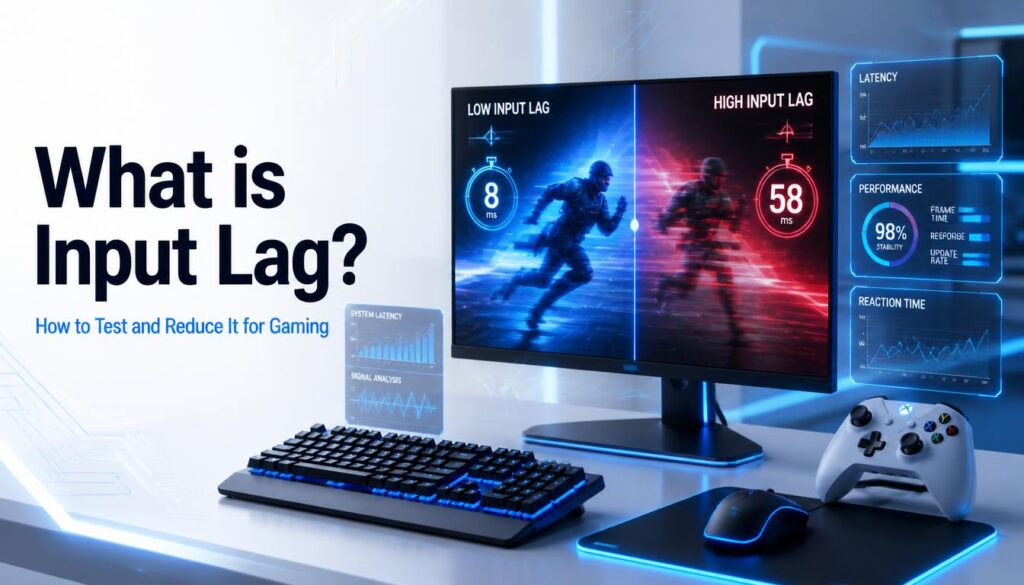
What is Input Lag? How to Test and Reduce It for Gaming
Quick answer: Input lag is the delay between your physical action pressing a key, clicking a mouse, pressing a controller button and seeing the result appear on screen. It is measured in milliseconds. Under 16ms is generally considered good for gaming. Test your system input lag free at techtester.online/latency test/ in Chrome or Edge no download required.
What is input lag?
Input lag (also called input latency or system latency) is the total time between a physical input event and its visual result appearing on your display. When you press a key in a game, multiple processing steps happen before the result appears on screen:
- Your keyboard or controller sends the input signal via USB or wireless
- Windows processes the input event and passes it to the game
- The game processes the input and updates the game state
- The GPU renders the new frame reflecting the input
- The monitor displays the rendered frame
The total time for all five steps is your input lag. Each step adds some delay. The goal is to minimise every step using wired peripherals, a powerful GPU, and a high refresh monitor all reduce different parts of this chain.
Input lag vs ping what is the difference?
Input lag and ping are both measured in milliseconds and both affect how responsive gaming feels but they measure completely different things.
- Input lag is local it measures the delay from your action to your screen. It affects both offline and online games. A game can have perfect ping and still feel laggy if input lag is high.
- Ping is network latency it measures the round trip time from your device to the game server. It only affects online multiplayer games. A game can have low input lag and still feel laggy online if ping is high.
For the best gaming experience you need low values in both. Test both simultaneously at techtester.online/latency test/ the only free tool that measures input lag and ping together.
What is a good input lag for gaming?
- Under 8ms Excellent. Competitive grade. Common on wired peripherals with 144Hz+ monitors.
- 8 to 16ms Good. Great for all gaming including competitive FPS.
- 16 to 33ms Average. Acceptable for casual gaming. May notice delay in fast games.
- 33 to 50ms High. Noticeable in competitive games. Enable Game Mode and check settings.
- Above 50ms Poor. Something is significantly wrong. Check TV Game Mode and cable type.
How to test your input lag online for free
Open techtester.online/latency test/ in Chrome or Edge. Click the Run Input Lag Test button. Click the large target area 20 times the tool measures the time between each click event and the next visual frame rendered. Your average, minimum, and maximum input lag appear after all 20 rounds with a rating badge. No download, no software installation required.
Run the test twice once with your current settings and once after making a change (enabling Game Mode, switching to Ethernet, changing cable type). The before and after comparison tells you exactly how much each change improved your latency.
7 ways to reduce input lag
1. Enable Game Mode on your TV or monitor (biggest impact for TV users)
Game Mode disables all display post processing motion smoothing, upscaling, local dimming, HDR tonemapping that adds 20 80ms of input lag on TVs. Most gaming monitors also have a Game Mode that reduces processing time. This is the single highest impact change for anyone gaming on a TV.
2. Use a wired connection for peripherals
Wired mouse: 0ms wireless overhead. Wired keyboard: 0ms. Wired controller via USB: 0ms. Bluetooth adds 10 40ms. 2.4GHz wireless peripherals add 1 3ms. For competitive gaming always use wired peripherals where possible.
3. Increase your monitor refresh rate
A 60Hz monitor shows a new frame every 16.6ms. A 144Hz monitor shows a new frame every 6.9ms. A 240Hz monitor shows a new frame every 4.2ms. Higher refresh rate means you see the result of your input sooner. Confirm your monitor is actually running at its rated Hz using the Refresh Rate Test at techtester.online/latency test/
4. Disable V Sync
V Sync adds up to one full frame of input lag (16.6ms at 60fps, 6.9ms at 144fps) as a buffer to prevent screen tearing. Replace it with G Sync (NVIDIA) or FreeSync (AMD) which provide tear free output with significantly less input lag than V Sync.
5. Use DisplayPort instead of HDMI
DisplayPort 1.4 supports higher refresh rates at more resolutions than HDMI 1.4 particularly at 1440p and 4K where HDMI 1.4 may force 60Hz. At the correct refresh rate DisplayPort and HDMI have similar input lag, but ensuring you are actually at 144Hz vs defaulting to 60Hz due to cable limitation is critical.
6. Update GPU drivers
Outdated GPU drivers can cause frame timing issues that increase measured input lag. Update via GeForce Experience (NVIDIA) or AMD Adrenalin (AMD). Update your motherboard chipset drivers at the same time.
7. Lower in game graphics settings
Higher graphics settings require more GPU processing time per frame directly increasing the delay between your input and the rendered result appearing on screen. Reducing shadow quality, draw distance, and post processing effects in game settings increases frame rate and reduces the rendering portion of input lag.
FAQ:
Input lag is the total delay between a physical action (key press, mouse click, controller button) and seeing the result appear on screen. It is measured in milliseconds and affects how responsive gaming feels. Under 16ms is good for gaming. Test your input lag free at techtester.online/latency test/
Main causes: display post processing (HDR, motion smoothing) on TVs and monitors, wireless peripherals adding transmission delay, low monitor refresh rate, V Sync adding a frame buffer delay, and low GPU performance causing slow frame rendering.
Enable Game Mode on your display, switch to wired peripherals, increase monitor refresh rate, disable V Sync (use G Sync or FreeSync instead), use DisplayPort cable, and update GPU drivers. Test the improvement at techtester.online/latency test/ before and after each change.
No. Input lag is local the delay from action to screen on your own device. Ping is network latency round trip time to a game server. Both affect gaming responsiveness but from different sources. Test both at techtester.online/latency test/