
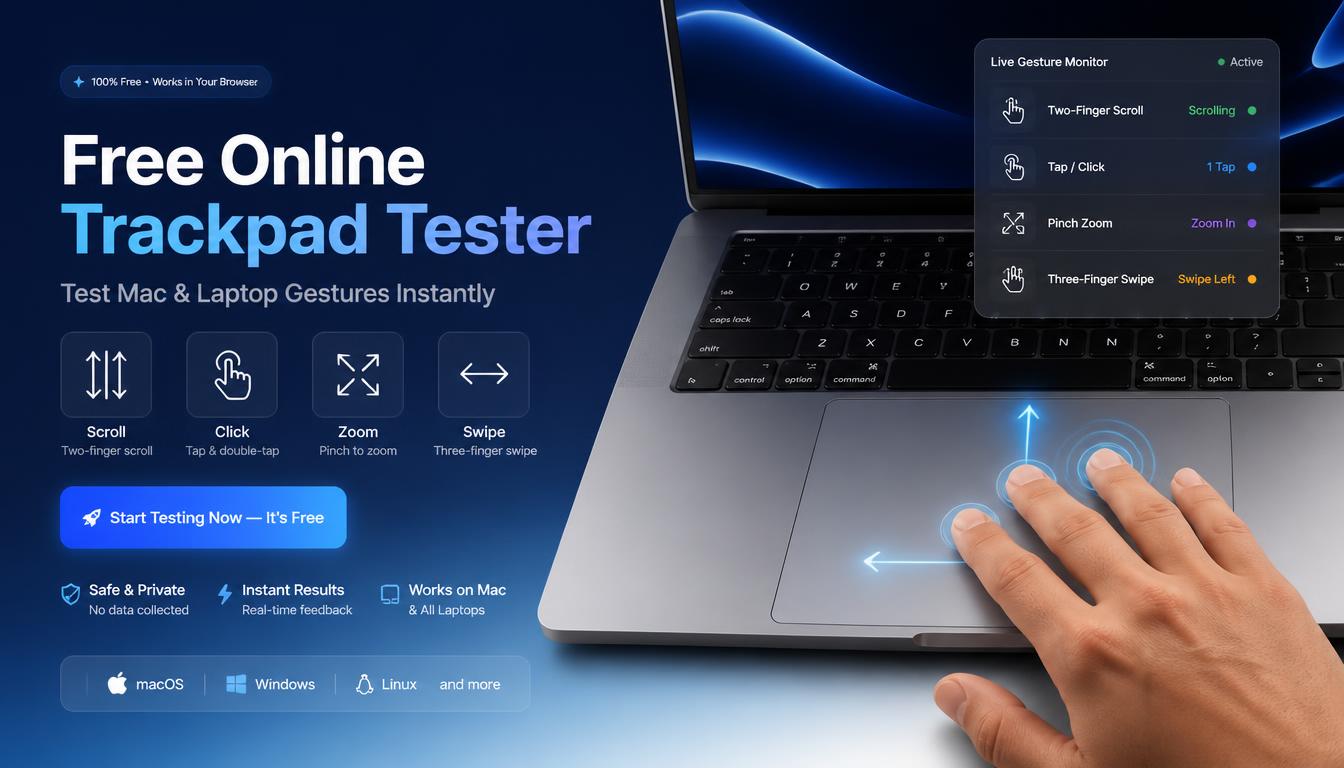
Free Trackpad Tester Online — Test Mac and Laptop Trackpad Gestures
| Quick answer: Test your trackpad instantly at techtester.online/touchpad-tester/ in Chrome or Safari. The tool detects tap, two finger scroll, pinch zoom, and multi touch gestures in real time. Works on MacBook trackpads, Windows laptop touchpads, and external Magic Trackpad. Free, no download. |
Trackpad and touchpad refer to the same thing the touch sensitive input surface on a laptop. Mac users call it a trackpad. Windows users typically call it a touchpad. Both terms describe identical hardware tested by the same browser APIs. If you are looking to test your trackpad online, this guide covers everything you need.
Trackpad vs touchpad what is the difference?
“Trackpad” is Apple’s term used for MacBook built in trackpads and the standalone Magic Trackpad accessory. “Touchpad” is the generic term used by Windows laptop manufacturers (Dell, HP, Lenovo, ASUS). The hardware works identically and the TechTester trackpad tester works with both.
How to test your trackpad online
- Open techtester.online/touchpad-tester/ in Chrome, Safari, or Edge
- The trackpad test area appears immediately no button to press
- Tap once on the trackpad a single tap registers on screen
- Tap twice quickly double tap registers
- Place two fingers and scroll two finger scroll detected
- Pinch with two fingers pinch zoom gesture detected
- Any gesture that does not register on the test screen is faulty or disabled in system settings
What the trackpad tester detects
- Single tap detection confirms basic tap to click is registering
- Two-finger scroll the most commonly broken gesture after system updates
- Pinch to zoom confirms multi touch is enabled and working
- Three-finger gestures if enabled in your system settings
- Ghost touches touches registering without physical contact (hardware fault)
- Stuck touch a touch that remains active after lifting your finger
Mac trackpad not working — 5 fixes
Fix 1 — Check gesture settings on Mac
System Settings then Trackpad confirm all gestures you need are enabled. macOS disables some gestures by default. Two finger scroll, tap to click, and pinch to zoom each have individual toggles. Enable any that are missing then retest at techtester.online/touchpad-tester/
Fix 2 — Reset trackpad on Mac
Shut down your Mac. Hold Shift + Control + Option + Power button for 10 seconds (on MacBooks with T2 chip this resets the SMC). Restart and retest. SMC reset fixes many trackpad responsiveness issues caused by firmware glitches.
Fix 3 — Check for physical damage or swollen battery
A swollen battery physically pushes against the trackpad from underneath causing erratic behavior or complete trackpad failure. If your MacBook trackpad clicks unevenly or is physically raised, check for battery swelling immediately. This is a safety issue requiring professional repair.
Fix 4 — Windows laptop touchpad not working
Device Manager then expand Mice and other pointing devices look for your touchpad device. If it shows a yellow warning icon update the driver. For Synaptics touchpads: Settings then Bluetooth and devices then Touchpad then confirm touchpad is enabled. Some laptops disable the touchpad when a USB mouse is connected.
Fix 5 — Two finger scroll not working
On Mac: System Settings then Trackpad then Scroll and Zoom then enable Scroll direction and Two-finger scroll. On Windows: Settings then Bluetooth and devices then Touchpad then Scrolling and zoom then enable Two finger scrolling. Retest at the trackpad tester after each change.
Q: What is a trackpad tester?
A trackpad tester is a browser tool that detects trackpad gesture input in real time showing which taps, scrolls, and multi touch gestures register correctly. Test at techtester.online/touchpad-tester/ works on Mac trackpads and Windows laptop touchpads.
Q: Why is my Mac trackpad not responding?
Most common causes: gesture settings disabled in System Settings then Trackpad, SMC firmware glitch (fix with SMC reset), physical damage or swollen battery pushing on trackpad, or macOS update resetting gesture preferences.
| Test your trackpad or touchpad right now free, no download: techtester.online/touchpad-tester/ Also test your keyboard: techtester.online/keyboard-checker/ |