
Table of Contents
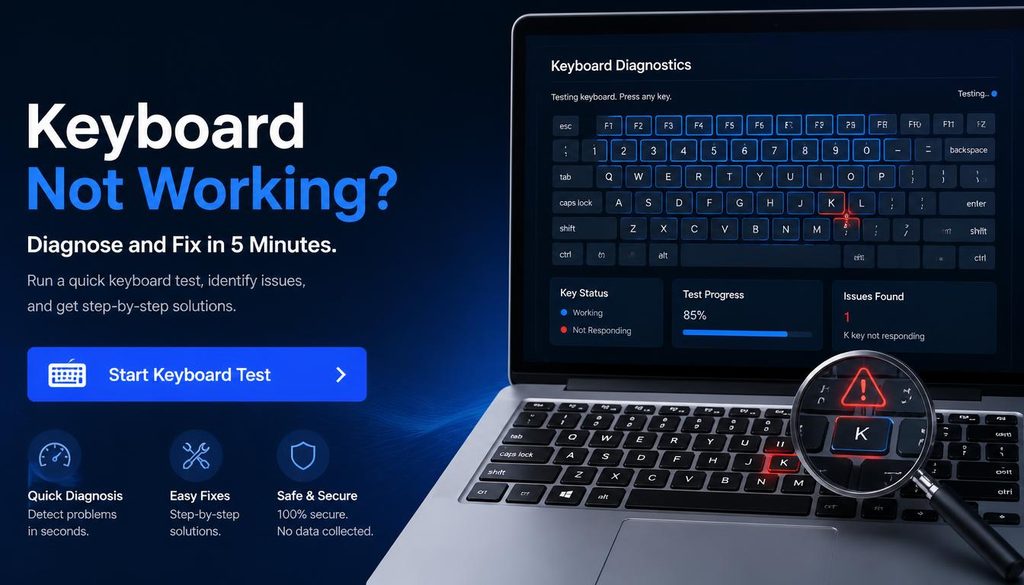
Keyboard Not Working? Diagnose and Fix in 5 Minutes
| Quick answer: First, test which keys are actually failing at techtester.online/keyboard-checker/ press each key and see exactly which ones register and which do not. This tells you whether the whole keyboard is unresponsive (connection or driver issue) or specific keys are failing (hardware or debris). |
Step 1 — Test the keyboard first
Before trying any fix, open techtester.online/keyboard-checker/ in your browser and press every key. This gives you the exact diagnosis:
- No keys register at all: connection problem, driver issue, or Filter Keys active
- Specific keys not registering: debris under that key, key switch failure, or stuck key issue
- Wrong characters typing: wrong input language selected
- Keys registering in the checker but not in a specific app: application specific input settings
Fix 1 — Disable Filter Keys (most overlooked)
Filter Keys is a Windows accessibility feature that ignores brief or repeated keystrokes. When accidentally activated it makes the keyboard appear broken. Disable: Settings then Accessibility then Keyboard then Filter Keys then toggle Off. Filter Keys activates by holding Shift for 8 seconds — easy to trigger accidentally.
Fix 2 — Check keyboard connection
- USB keyboard: try a different USB port, bypass any hub, connect directly to the PC
- Wireless keyboard: check battery level, resync the USB receiver, try fresh batteries
- Bluetooth keyboard: remove from Bluetooth settings and repair
- Laptop keyboard: if connected via USB or Bluetooth externally, check if that is overriding the laptop keyboard
Fix 3 — Check input language
If the keyboard types wrong characters rather than not typing at all, the input language has been changed. Check the language indicator in the taskbar. Press Windows + Space to cycle between languages. Remove any accidentally added input languages in Settings then Time and Language then Language.
Fix 4 — Update or reinstall keyboard driver
- Device Manager then expand Keyboards
- Right click keyboard then Update driver then Search automatically
- If that fails: right click then Uninstall device
- Disconnect and reconnect keyboard Windows reinstalls driver automatically
Fix 5 — Clean debris from under keys
Debris under keys causes keys to stick or not actuate properly. Use compressed air directed at a 45 degree angle under the affected keys. For laptop keyboards: hold the laptop upside down at 45 degrees while using compressed air. A keycap puller removes individual keycaps for deeper cleaning.
Fix 6 — Mac keyboard not working
- System Settings then Accessibility then Keyboard then Slow Keys ensure Slow Keys is off (it requires holding keys for a set duration)
- System Settings then Keyboard then Input Sources confirm correct keyboard layout is selected
- For MacBook keyboards: System Settings then Keyboard then Keyboard Brightness ensure keyboard is not in a sleep/dim mode
Q: Why did my keyboard suddenly stop working?
Most common causes: Filter Keys accidentally activated (hold Shift 8 seconds to toggle), USB connection issue (try different port), driver needs reinstalling (Device Manager then Keyboards then Uninstall then reconnect), input language changed (Windows+Space to cycle), or debris under keys. Test exactly which keys fail at techtester.online/keyboard-checker/
| Test your keyboard right now — see exactly which keys work: techtester.online/keyboard-checker/ For full keyboard fix guide: techtester.online/keyboard-not-working-fixes/ |