
Table of Contents
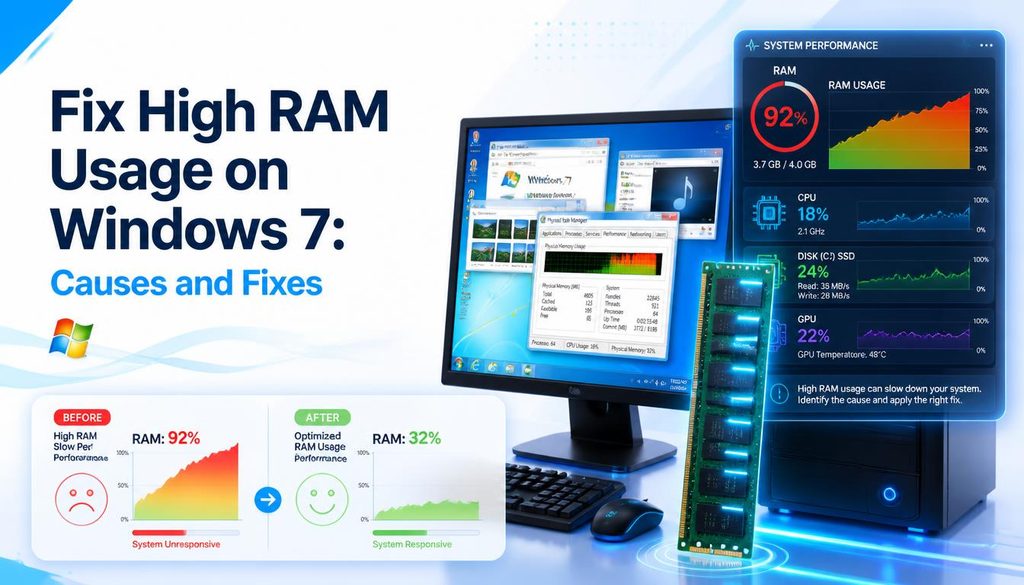
Fix High RAM Usage on Windows 7 Causes and Fixes
| Quick answer: Check your actual RAM usage at techtester.online/ram tester/ first. If available memory is below 2GB, high RAM usage is genuine. If the test shows plenty of free RAM but Windows feels slow, the problem is likely a different bottleneck CPU, storage speed, or GPU. |
Fix 1 Disable unnecessary startup programs
- Task Manager then Startup apps tab (Windows 11) or Startup tab (Windows 10)
- Sort by Startup impact
- Right click and Disable any application you do not need to launch automatically
- Common culprits: Spotify, Discord, OneDrive, Teams, Zoom, Adobe updaters, Skype
Each disabled startup application frees 50 200MB of RAM at startup and reduces time to desktop.
Fix 2 Disable SysMain (Superfetch)
SysMain (formerly Superfetch) preloads commonly used applications into RAM to speed up launch times. On systems with 8GB or less RAM this can cause high idle RAM usage. Disable via: Services (search in Start menu) then SysMain then right click then Properties then Startup type: Disabled then Stop then OK. Monitor RAM usage for a day if performance improves, keep it disabled.
Fix 3 Identify memory leak applications
- Task Manager then Details tab
- Sort by Memory (working set) click the column header
- Watch which application is memory usage grows continuously over time without releasing
- An application whose RAM usage grows by hundreds of MB over hours without a corresponding increase in activity has a memory leak
- Update the application or restart it regularly as a workaround until a fix is released
Fix 4 Adjust virtual memory settings
- Settings then System then About then Advanced system settings
- Performance then Settings then Advanced tab then Virtual Memory then Change
- Uncheck Automatically manage paging file size
- Select Custom size: set Initial size to 1.5x your RAM in MB, Maximum size to 3x your RAM in MB
- Click Set then OK then restart
Virtual memory (page file) uses storage as overflow RAM. Correct sizing prevents Windows from consuming excess RAM managing paging operations.
Fix 5 Close browser tabs
Chrome and Edge are among the highest RAM consumers in modern Windows. Each browser tab uses 100 300MB of RAM. 20 open tabs can consume 2 6GB. Use the built in Memory Saver feature in Chrome (Settings then Performance then Memory Saver) which suspends inactive tabs and frees their RAM.
Fix 6 Scan for malware
Malware and cryptomining software consume RAM while running hidden background processes. Run Windows Security (built in, free) full scan or Malwarebytes (free tier) to check for malicious processes consuming memory.
Fix 7 Upgrade RAM
If all software fixes are applied and RAM is still consistently above 85% usage during normal tasks, the system genuinely needs more RAM. Check what is installed with techtester.online/ram tester/ and compare against your motherboard is maximum supported RAM. DDR4 16GB kits are inexpensive in 2026. If upgrading, add a matching stick to existing RAM for dual channel, or replace both sticks with a matched dual channel kit.
FAQ
Why is my RAM usage so high?
Most common causes: too many startup programs (disable in Task Manager), browser with many tabs open (Chrome uses 100 300MB per tab), SysMain/Superfetch preloading applications, a memory leak in a specific application, or insufficient RAM for your workload. Check actual usage at techtester.online/ram tester/ to confirm.