
Table of Contents
Free PS5 DualSense Controller Test – Check Every Button and Trigger Online
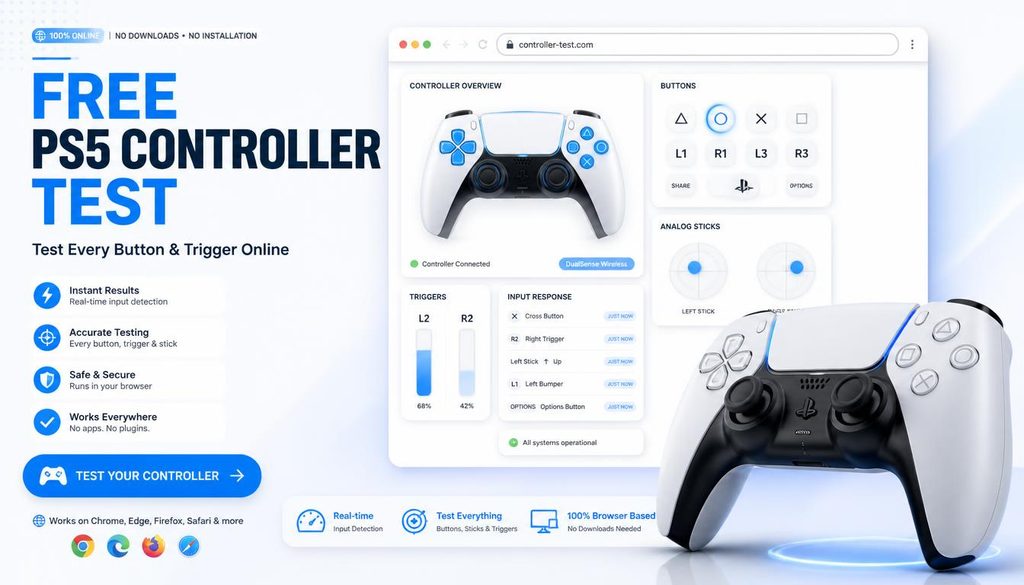
The PS5 DualSense has more inputs to test than any previous PlayStation controller 17 buttons, 2 analog triggers with adaptive resistance, 2 thumbsticks, a touchpad, a built in microphone button, and a Create button. A full controller test before a gaming session, before a purchase, or after a repair confirms every input is functioning correctly.
What to test on your PS5 DualSense
- All face buttons: Cross, Circle, Square, Triangle each should register immediately on press with no delay or double registration
- Shoulder buttons: L1, R1 digital buttons, register as on or off
- Adaptive triggers: L2, R2 analog inputs showing 0.00 (released) to 1.00 (fully pressed). If a trigger does not reach 1.00 when fully pressed, the trigger mechanism is worn.
- Thumbsticks: left and right sticks show X and Y axis values from -1.00 to 1.00. At rest all values should be near 0.00. Values above 0.05 at rest confirm drift.
- D-pad: all four directions should register individually and in combination
- System buttons: Options, PS button, Create button, Touchpad click
- Touchpad swipe: swipe gestures on the touchpad surface
How to test PS5 controller on PC — step by step
- Connect DualSense to PC via USB C to USB A cable
- Open techtester.online/ps5-controller/ in Chrome or Edge
- Press any button on the controller the Gamepad API activates on first button press
- Test every button, both triggers (pull to 1.00), and both thumbsticks
- Release both thumbsticks completely and watch the axis values anything consistently above 0.05 confirms drift
- For dedicated drift detection with severity ratings: techtester.online/stick-drift-test/
Testing a second hand PS5 controller before buying
When buying a used DualSense, run this test before completing the purchase. Key things to check:
- Drift test: release both sticks and confirm all 4 axis values read near 0.00. Drift is the most common fault on used DualSense controllers.
- Trigger range: pull each trigger fully and confirm it reaches 1.00. Worn trigger springs stop triggers reaching full range.
- Button registration: press each button 5 to 10 times rapidly and confirm every press registers chattering buttons may only fail under rapid input.
- Touchpad: swipe across the touchpad and confirm it registers as a gesture.
PS5 controller faults what each test result means
- Thumbstick axis above 0.05 at rest: drift confirmed clean with isopropyl alcohol or contact Sony for warranty repair
- Trigger not reaching 1.00: worn trigger spring Sony warranty covers this
- Button not registering: debris under button, damaged contact, or worn switch clean first, warranty if cleaning fails
- No controller detected at all: check USB cable is data capable (not charge only), try a different USB port, press any button after connecting
Q: How do I test my PS5 controller on PC?
Connect DualSense via USB C cable. Open techtester.online/ps5-controller/ in Chrome or Edge. Press any button. Every input displays in real time buttons, triggers (0.00 to 1.00 analog), and thumbstick axis values. Free, no download.
| Test your PS5 DualSense right now free, no download: techtester.online/ps5-controller/ For stick drift detection: techtester.online/stick-drift-test/ |